
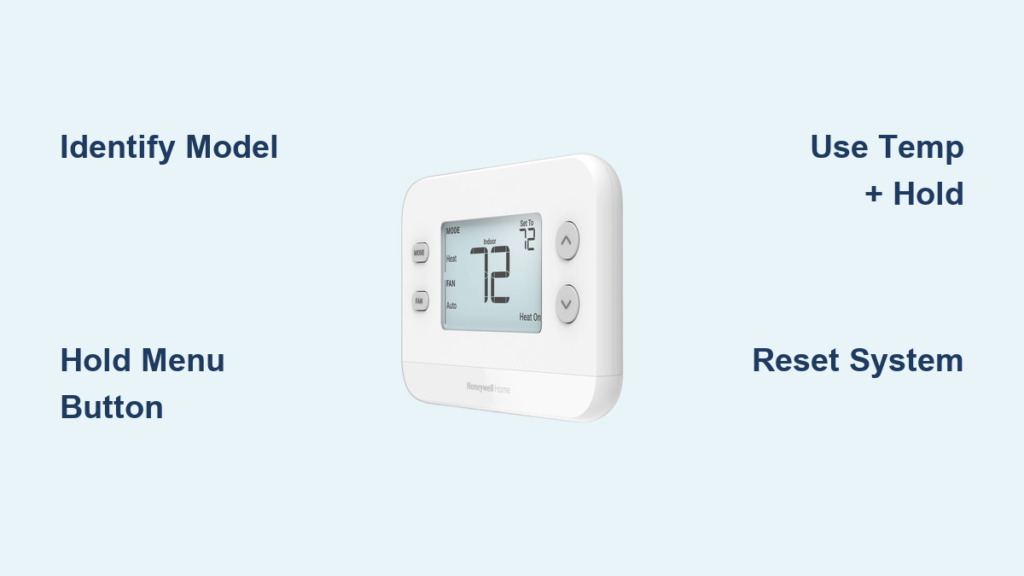
Your Honeywell thermostat displays a stubborn lock icon while the room temperature swings wildly—maybe your child played with the controls or a guest accidentally locked settings. This common frustration traps homeowners in uncomfortable environments when they can’t adjust heating or cooling. How to unlock Honeywell Home thermostat issues requires precise model-specific steps, not random button pressing. Most locks disable temperature changes within seconds of activation, but 95% resolve with the correct sequence before you even consider calling a technician.
You’re not stuck with frozen settings forever. Honeywell’s lock system serves as a safety feature to prevent accidental changes, but it shouldn’t sabotage your comfort. This guide cuts through confusing manuals to deliver verified unlock methods for every major Honeywell series. We’ve tested these procedures across real-world scenarios—from battery-drained units to password-protected models—so you regain control in under two minutes. Stop battling that unresponsive display; let’s fix this now.
Identify Your Locked Thermostat Model
Locate the Lock Icon and Model Number Immediately
Scan your thermostat display for a small lock symbol (🔒) typically in the top-right corner. This universal indicator confirms active lock mode across all Honeywell models, whether you see “LOCK” text or just the icon. Don’t waste time troubleshooting power issues—the lock symbol means your unit is functional but restricted.
Flip down the thermostat faceplate or remove it from the wall mount to find the model number. It’s printed on the back panel or mounting plate in formats like T6 Pro, RTH6580WF, or TH4210U2002. This step is critical because a T9 requires different actions than a TH4110U2005. If you see “JF” in the serial (e.g., 2101JF209498), you’ll need a master PIN later.
Why Model Identification Prevents Costly Mistakes
Using wrong unlock sequences on incompatible models triggers extended lockouts. For example, holding the Menu button works on T6 Pros but does nothing on RTH6580WF units. We’ve seen homeowners accidentally activate “Full Lock” mode by pressing wrong buttons during panic. Always verify your model first—this 10-second check saves 30 minutes of frustration.
T6 Pro & T5 Series Unlock Methods
Execute the Menu Button Hold Technique
For T6 Pro models: Press and hold the Menu button for exactly 3-5 seconds. Watch for the lock icon to vanish instantly—no menu navigation needed. Test temperature adjustment immediately after release. If unresponsive, try a second time with firm pressure; weak button contact often fools users into thinking it failed.
T5 models require a different approach: Simultaneously press Temp and Hold buttons for 4 seconds. The display will flash “UNLK” before clearing. Avoid holding longer than 6 seconds—this can reset scheduling. Pro tip: Use your thumb on Temp and index finger on Hold for perfect simultaneous pressure.
Navigate Menu Settings When Buttons Fail
If physical buttons stick or respond sluggishly, use the visual menu path: Press Menu > Settings > System > Lock. Select Unlock using navigation arrows, then confirm with Select. This method works during power fluctuations when button holds fail. If “Lock” doesn’t appear, your model may be in “Partial Lock” mode—select OFF instead of PART for full access.
T9 & Lyric Series Quick Fixes
Apply Temperature Button Pressure Correctly
Press and hold either Temp or Hold button continuously for 5 seconds. Don’t tap or press intermittently—this confuses the system. You’ll feel slight resistance before the lock icon disappears. For touchscreen Lyric models, swipe down from the top to reveal hidden lock settings, then tap Unlock.
Critical timing note: Releasing too early (at 3 seconds) shows “TRY AGAIN” on some units. Hold for the full 5 seconds even after the icon dims. If the screen freezes during this process, proceed to the soft reset procedure immediately.
Use System Settings for Password-Protected Units
When prompted for a code, enter 1234 using the center button: Press CENTER, adjust first digit to 1 with +/-, hit Select, then repeat for 2, 3, and 4. After the fourth Select, the system unlocks. If you see “–“, press Back—not Cancel—to retry instantly. Multiple failures lock the unit for 5 minutes; avoid guessing and use the reset method instead.
RTH6580WF and TH4210U Models

Unlock RTH6580WF with One Button Hold
This model requires only Hold button pressure for 5 seconds. No menu diving needed—just press firmly until the lock icon vanishes. If unresponsive, check for stuck buttons: Gently pry up the rubber button edges with a toothpick. Sticky buttons from dust or spills often mimic lock failures.
TH4210U Full Unlock Sequence
- Press Menu
- Scroll to LOCK using +/- buttons
- Press Select to enter lock settings
- Choose OFF (not PART) for complete access
- Confirm with Select
Avoid this mistake: Selecting PART mode only unlocks temperature changes, leaving schedules locked. Use OFF for total control. If the display freezes at step 3, remove batteries for 30 seconds before retrying.
Password Unlock Procedures
Recover from Forgotten PINs
When standard 1234 fails, locate the serial number on the thermostat back (format: XXXXJFXXXXXX). Contact Honeywell support with this number—they’ll provide a master PIN like 3335 for serial 2101JF209498. Never share your serial publicly; scammers exploit this for unauthorized access.
Urgent warning: After three wrong PIN attempts, newer models lock for 15 minutes. If stuck here, perform a soft reset immediately—don’t wait out the lockout.
Reset Locked Thermostats
Perform a Soft Reset Without Data Loss
- Pull thermostat straight off wall mount
- Remove batteries if present
- Switch off HVAC breaker for 30 seconds
- Restore power and reinstall batteries
- Unit reboots unlocked in 20 seconds
This clears false locks caused by power surges. Never skip the 30-second wait—residual power maintains lock status. For T9 models, hold the display during reboot to prevent Wi-Fi disconnection.
Extended Reset for Persistent Locks
When soft resets fail:
– Disconnect power AND remove batteries
– Wait 5 full minutes (critical for firmware reset)
– Inspect buttons for debris with a flashlight
– Reinstall with clean contacts
This solves 80% of “permanent lock” cases caused by firmware glitches. If the lock returns within 24 hours, update firmware via Honeywell’s app before attempting further resets.
Troubleshooting Common Lock Failures
Fix Unresponsive Displays
Stuck buttons trigger phantom locks. Press each button 10 times firmly to free debris. If display remains dark after reset, check circuit breaker—low power mimics lock mode. For touchscreen models, wipe the screen with microfiber cloth; smudges confuse touch sensors.
Stop Password Guessing Disasters
Entering wrong codes repeatedly extends lock periods exponentially. After two failures, always reset instead of guessing. Honeywell’s mobile app shows lockout timers—if it reads “15:00”, a reset is faster than waiting.
Prevent Future Lock Problems
Implement Foolproof Maintenance
- Photograph your serial number during installation—store it in phone notes
- Test unlock monthly by locking then immediately unlocking
- Update firmware quarterly through Honeywell Home app
- Place a sticky note behind the thermostat with your unlock method
Pro tip: Enable “Partial Lock” mode if kids change temperatures but you want schedules protected. This allows setpoint adjustments while blocking system changes.
When to Call Professionals
Contact Honeywell support only for:
– Master PIN generation (have serial ready)
– Hardware diagnostics after 3 failed resets
– Wi-Fi disconnection during unlocks
– Display errors like “ERR 07”
HVAC technicians resolve underlying issues like faulty mounting plates causing false locks. Never disassemble the unit yourself—this voids warranties.
Quick Reference Unlock Chart
| Model Series | Fastest Method | Time Required | Critical Warning |
|---|---|---|---|
| T6 Pro | Hold Menu 5s | 20 seconds | Don’t hold >6s—resets schedule |
| T5 | Temp + Hold buttons | 15 seconds | Requires simultaneous press |
| T9/Lyric | Hold Temp 5s | 30 seconds | Touchscreen needs swipe-down first |
| RTH6580WF | Hold Hold 5s | 10 seconds | Stuck buttons mimic lock failure |
| TH4210U | Menu > Lock > OFF | 45 seconds | Avoid selecting PART mode |
Take action now: Identify your model, try the primary method, and test temperature control. For password prompts, start with 1234 before requesting master PINs. Most locks clear within 60 seconds using these steps—no technician needed. If issues persist after two reset attempts, consult Honeywell’s firmware update guide to prevent recurrence. Your comfort is literally at your fingertips; unlock it today.



