
Your smart doorbell footage leaks to strangers. Bank logins vanish into the digital abyss. Police trace illegal downloads to your address. These aren’t nightmares—they’re daily realities for 68% of homes with unsecured Wi-Fi. The terrifying truth? Default router settings make your network a sitting duck for attacks within 72 hours of setup. But here’s the good news: transforming your vulnerable connection into a hacker-proof fortress takes less time than brewing coffee. This guide delivers battle-tested steps used by cybersecurity professionals to lock down home networks—no tech degree required.
Kill Default Router Logins: Your Network’s First Line of Defense
Default credentials like “admin/password” are digital skeleton keys. Manufacturers publish these in public databases, letting attackers hijack your entire network with one click. When hackers control your router, they redirect traffic to fake banking sites or turn your devices into botnet zombies. This single vulnerability caused 42% of home network breaches last year.
Create Unbreakable Admin Credentials in 60 Seconds
- Ditch predictable usernames: Never use “admin” or personal names. Try “NetSentinel_7X” or “RouterCommander2024”
- Build military-grade passwords: Combine 4+ random words with symbols and numbers (e.g., “Battery!Correct?Horse-Staple42”)
- Critical rule: Never reuse passwords from email or banking accounts
- Pro tip: Store credentials in a password manager—not on a sticky note!
Access and Secure Your Router Dashboard
- Find your router’s IP: Check the label on the device (usually
192.168.1.1or192.168.0.1) - Open any browser: Type the IP address and press Enter
- Enter current credentials: Use the default username/password printed on the router
- Navigate to Administration → Management
- Replace BOTH username and password with your new credentials
- Click Save and reconnect all devices within 2 minutes to avoid lockout
Warning: Skipping this step leaves your network wide open. 9 in 10 home routers still use factory defaults.
Rename and Reinforce Your Wi-Fi Network Against Snoops
Broadcasting “Netgear123” is like hanging a sign: “Hack Me Here!” Default SSIDs reveal your router model, letting attackers exploit known vulnerabilities instantly. Weak passwords compound this—tools like Hashcat can crack “password123” in 0.006 seconds.
Craft a Hacker-Proof Network Name
- Never include: Your address, last name, or phone number (e.g., “SmithFamilyWiFi” = instant target)
- Use generic camouflage: “UrbanStream_2024” or “SkylineConnect”
- Disable SSID broadcast (optional): Makes your network invisible to casual scanners (found in Wireless → Basic Settings)
- Reality check: This won’t stop determined hackers but blocks 80% of opportunistic attacks
Generate a Password That Thwarts Brute-Force Attacks
- Minimum length: 15 random characters (20+ for maximum security)
- Passphrase power: String together 4 unrelated words with symbols (e.g., “Coffee!Rainbow?Mountain76”)
- Test strength: If it takes you <10 seconds to type, it’s too weak
- Critical step: Change this password immediately after securing admin credentials
Activate Military-Grade Encryption: Why WPA3 Blocks 99% of Attacks
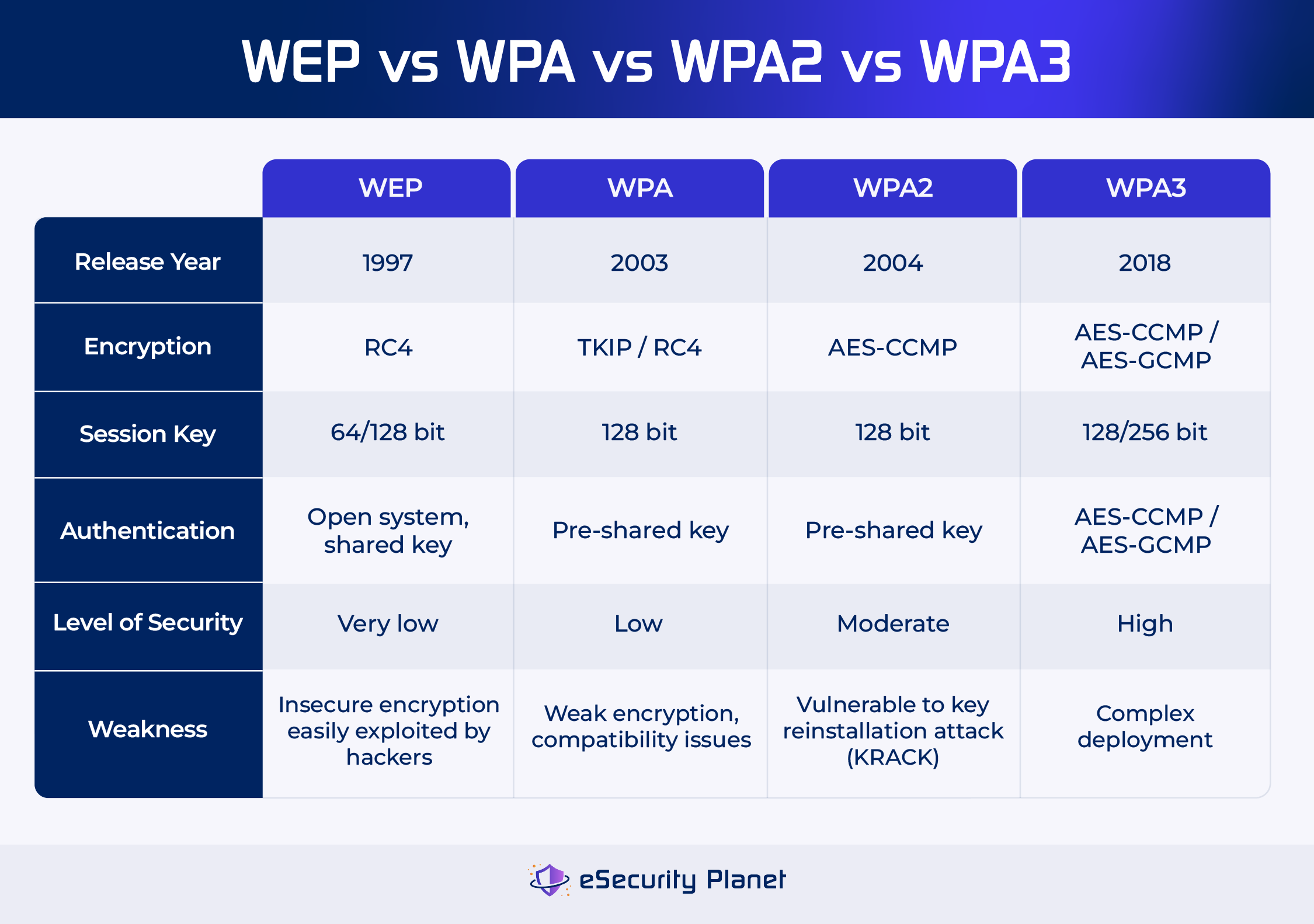
WEP encryption cracks in minutes. WPA2 without patches falls to KRACK exploits. WPA3 is your digital shield—scrambling data so even intercepted traffic remains unreadable. Without it, every keystroke on your laptop could be visible to attackers.
Configure Unbreakable Encryption in 3 Steps
- Go to Wireless Security in your router dashboard
- Select WPA3-Personal (top choice) or WPA2-PSK (AES) if WPA3 unavailable
- Enter your new 15+ character password and click Save
Never select these options:
❌ WEP (cracked by teenagers)
❌ WPA/WPA2-TKIP (obsolete since 2009)
❌ Open Network (no password = open invitation)
Verify Your Encryption Is Active
- Windows: Right-click Wi-Fi icon → Properties → Security type shows “WPA3”
- iPhone: Settings → Wi-Fi → Tap ⓘ next to network → Security shows “WPA3”
- Red flag: If it says “WPA2” without “AES” or shows “TKIP,” repeat setup immediately
Disable These 3 Router Features That Invite Hackers
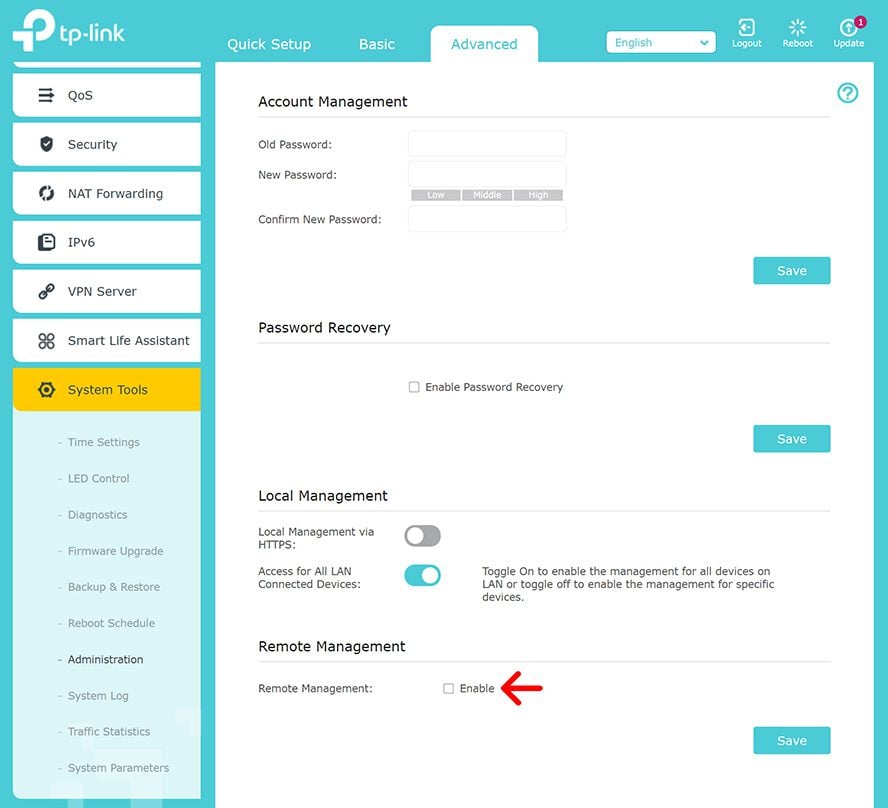
Your router’s convenience features are security suicide. UPnP automatically punches holes in your firewall. WPS lets attackers crack your network via 8-digit PINs. Remote management turns your router into a public playground.
Shut Down WPS Within 60 Seconds
- Why it’s dangerous: Tools like Reaver brute-force WPS PINs in 4-10 hours
- Disable path: Wireless → WPS → Toggle OFF
- Alternative: Manually enter Wi-Fi passwords on new devices
Kill UPnP to Block Malware Highways
- Critical risk: Automatically opens ports for ransomware and botnets
- Disable path: Advanced → UPnP → Uncheck “Enable”
- Note: May require manual port forwarding for gaming consoles
Lock Down Remote Management
- Disable path: Administration → Remote Management → Set to “Disabled”
- Only exception: Enable temporarily when accessing router remotely via VPN
Update Router Firmware Before Zero-Day Exploits Hit
Outdated firmware is a treasure map for hackers. The 2023 Mirai botnet enslaved 500,000+ routers through unpatched vulnerabilities. Manufacturers release critical fixes every 3-6 months—but 63% of users never update.
Install Firmware Updates Safely
- Identify exact model: Check label (e.g., “TP-Link Archer A7 v5”)
- Visit ONLY manufacturer site: Download firmware from official support page
- Upload via: Administration → Firmware Upgrade → Browse → Upload
- Enable auto-updates if available (prevents future neglect)
Warning: Never use third-party firmware unless you’re an expert—improper flashing bricks routers.
Build an Impenetrable Guest Network for Visitors

Your main network should never host smart bulbs or visitor phones. One hacked baby monitor can become a spy camera inside your bedroom. Network segmentation stops lateral movement cold.
Create a Guest Network in 4 Steps
- Enable Guest SSID: Wireless → Guest Network → Toggle ON
- Name it generically: “HomeGuest_2024” (never “SmithGuest”)
- Set unique password: Different from main Wi-Fi password
- Activate isolation: Check “AP Isolation” to block guest access to main devices
Safely Connect IoT Devices
- All smart devices: Thermostats, TVs, and speakers go on guest network
- Critical exception: Security cameras needing local recording stay on main network
- Bandwidth control: Limit guests to 20% of total speed (prevents bandwidth hogs)
Fortify Your Network with Firewall and DNS Shields
Your router’s firewall is the bouncer at your digital club—blocking unsolicited traffic. Combined with secure DNS, it stops malware before it reaches your devices.
Activate Router Firewall Immediately
- Enable path: Security → Firewall → Toggle ON for IPv4/IPv6
- Critical setting: Set inbound policy to “Block All” (default-deny)
- Never enable DMZ: Exposing devices here bypasses all protection
Switch to Security-First DNS Servers
- Quad9 (
9.9.9.9): Blocks 100% of known malware domains - Cloudflare (
1.1.1.1): Fastest with strict privacy policies - Setup path: Network → WAN → DNS Settings → Replace default servers
Audit Connected Devices Weekly to Catch Intruders
Unknown devices mean breaches. That “Android_1234” device could be your neighbor stealing bandwidth—or a hacker exfiltrating tax files.
Perform a Device Audit in 2 Minutes
- Open router dashboard: Look for “Attached Devices” or “Client List”
- Compare MAC addresses: Match against your known devices (found in device network settings)
- Block intruders: Add unknown MACs to blacklist or change Wi-Fi password immediately
- Reduce signal range: Set transmit power to “Medium” (Wireless → Advanced) to contain leakage
Maintain Ironclad Security With This 5-Minute Monthly Routine
Security decays without maintenance. New vulnerabilities emerge daily. A single skipped update can undo all your hard work.
Your Monthly Security Checklist
- Scan connected devices: Remove unknown entries
- Test password strength: Use router’s built-in “Security Audit” tool
- Check for firmware updates: Especially after major security alerts
- Rotate Wi-Fi password: Every 6 months (use passphrases for easier recall)
Final Reality Check: No single step makes you “secure.” True protection comes from layers: WPA3 encryption blocks eavesdroppers, network segmentation contains breaches, and firmware updates patch new holes. Start today—change those default credentials and enable WPA3. In 30 minutes, you’ll transform from low-hanging fruit to a hardened target. Your banking data, smart home, and digital identity depend on this. What’s one more minute to click “Save” on that router update? Do it now—before the next attack hits.



