
Your Verizon home internet suddenly cutting out during a critical video call or streaming session? That frustrating lag or complete disconnection often resolves with the right reset method—but using the wrong approach can cost you hours of reconfiguration. Knowing exactly how to reset Verizon home internet through either a quick reboot or full factory reset saves you from unnecessary service calls and gets your Wi-Fi back online in minutes. This guide cuts through the confusion with model-specific steps for your Verizon Internet Gateway, including exactly when to use each method and critical mistakes that leave your network down longer.
When to Reboot vs Factory Reset Your Verizon Router
Choosing the wrong reset method creates more problems than it solves. Your Verizon Internet Gateway responds differently to soft reboots versus full factory resets—understanding this distinction prevents wiping custom settings unnecessarily. Always start with a router reboot unless you have specific reasons for a complete reset.
Fix Common Glitches With a Router Reboot
Use this method when experiencing intermittent disconnects, slow speeds on multiple devices, or when connected devices show “no internet” despite Wi-Fi signal. A router reboot clears temporary memory glitches without touching your Wi-Fi name, password, or security settings. This soft reset resolves 80% of Verizon connectivity issues by refreshing the connection to Verizon’s network while preserving all personalized configurations. If your smart home devices lose connection temporarily after rebooting, they’ll automatically reconnect within 60 seconds using your existing network credentials.
When You Must Factory Reset Your Verizon Internet Gateway
Execute a factory reset only when you’ve forgotten Wi-Fi passwords, suspect security breaches, or persistent issues remain after 3+ reboots. This hard reset erases all custom settings—including port forwarding rules, DNS configurations, and parental controls—returning your gateway to its out-of-box state. You’ll need to completely reconfigure your network afterward, so document current settings first. If preparing your device for sale or transfer, a factory reset protects your personal network data. Critical warning: Never perform this reset during severe weather or known outages, as the gateway may fail to reconnect to Verizon’s network.
Step-by-Step Verizon Router Reboot Instructions
This 3-minute procedure fixes most connectivity issues without disrupting your network setup. Unlike factory resets, router reboots maintain all your custom configurations while clearing temporary system errors that cause slowdowns.
Power Down Your Verizon Internet Gateway Correctly
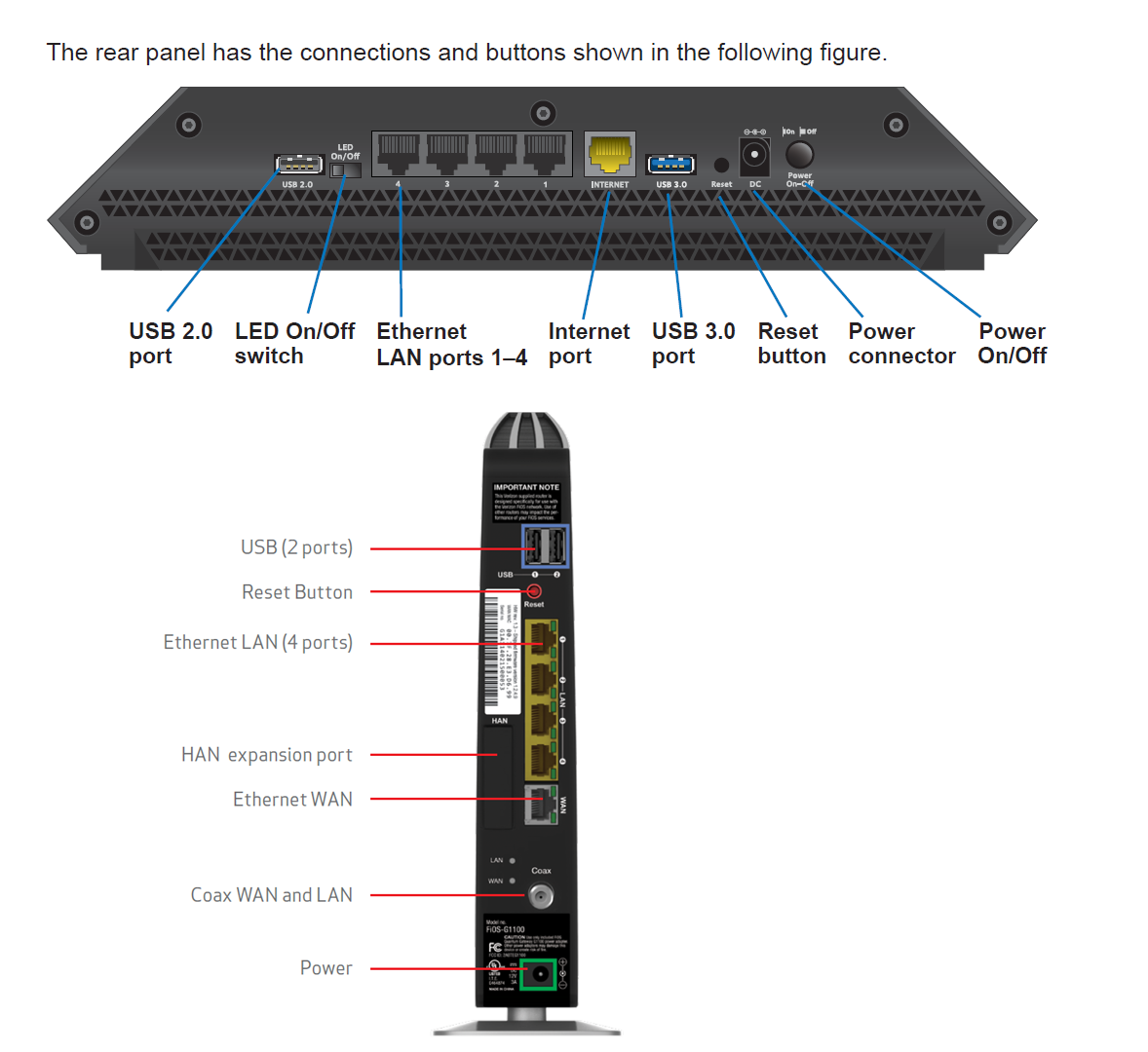
Locate the power button on the back panel of your Verizon Fios router (models G1100, G3100, and MI424WR) or unplug the power cord directly from the wall outlet. Never use a wall switch—this prevents complete capacitor discharge. For older models without power buttons, firmly grasp the power cord connector (not the cable) and disconnect it from the router’s port. If your gateway has status lights, confirm they turn off completely within 5 seconds.
Why the 30-Second Wait Is Critical for Reset Success
Maintain power disconnection for exactly 30 seconds—no less, no more. This duration ensures capacitors fully discharge, clearing corrupted temporary memory that causes connection drops. Rushing this step by reconnecting power too soon leaves residual data that perpetuates the original problem. Use your phone timer: when the seconds hit zero, proceed immediately to power restoration. Skipping this wait is the #1 reason reboots fail to resolve Verizon internet issues.
Power Restoration and Startup Sequence
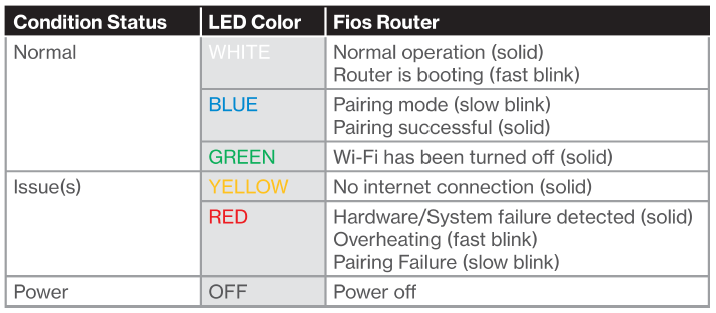
Reconnect the power cord firmly into both the wall outlet and router port. Within 10 seconds, observe the status lights cycling through orange, white, and blue patterns—this indicates normal startup. Pro tip: If lights remain off after 15 seconds, swap power cords with a known-working device to rule out cord failure. Allow 2 full minutes for the gateway to complete its sequence: establishing fiber connection (solid white light), syncing with Verizon’s network (flashing blue), then broadcasting Wi-Fi (solid blue).
Verify Your Internet Connection After Reboot
Test connectivity on your primary device first using speedtest.net. Confirm all household devices reconnect automatically within 90 seconds—no manual rejoining needed since Wi-Fi credentials remain intact. Check for lingering issues: if video calls still freeze or downloads stall below 50% of your subscribed speed, check the Verizon Service Status page before attempting another reset. Persistent problems after reboot may indicate line damage or account issues requiring professional support.
Complete Verizon Factory Reset Procedure
Use this nuclear option only when reboots fail or security is compromised. The process permanently erases all network customizations, so prepare for 15 minutes of reconfiguration afterward. Have your device’s label (showing default SSID/password) ready before starting.
Locate the Reset Button on Your Verizon Gateway
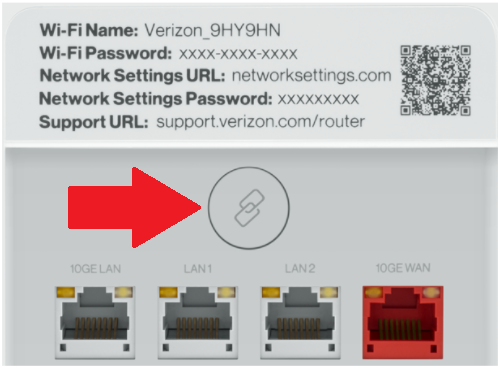
Flip your router upside down—on Fios models G1100 and G3100, the recessed reset button sits near the power port on the bottom panel. For older MI424WR units, check the back panel beside the Ethernet ports. The tiny hole requires a paperclip or SIM eject tool; your fingertip won’t reach it. Warning: Don’t confuse this with the WPS button (usually labeled with circular arrows)—pressing WPS won’t trigger a reset.
Execute the 10-Second Factory Reset Hold
Insert your tool and press firmly until you feel resistance. Hold continuously for 10-15 seconds while watching status lights. Release immediately when lights begin rapid flashing (typically at 12 seconds). Holding longer than 15 seconds risks firmware corruption. If lights don’t change pattern after 15 seconds, release pressure and retry—your tool may not be making proper contact with the internal switch.
Allow Full Restoration (2-5 Minutes)
After releasing the button, the gateway automatically restarts. During this period:
– All custom settings permanently erase
– Default network names (like “Fios-XXXX”) reactivate
– Factory security protocols reload
– Connection to Verizon’s network reestablishes
Do not unplug during this phase—interrupting power corrupts the firmware. Wait until all lights stabilize (solid white/blue) before proceeding.
Reconfigure Your Network After Factory Reset
Connect to the default network using credentials from your device label. Then:
1. Via Smart Home Manager App: Download Verizon’s app, scan the QR code on your gateway, and follow prompts to set new Wi-Fi name/password
2. Via Web Portal: Go to 192.168.1.1 in browser, log in with admin credentials from label, and navigate to Wireless Settings
Immediately enable WPA3 security and create a 12+ character password. Reconnect all devices using your new credentials—this is also the ideal time to set up guest networks or parental controls.
Post-Reset Checklist for Verizon Internet
After Router Reboot: 4 Critical Checks
- [ ] Confirm all IoT devices (smart lights, thermostats) reconnect automatically
- [ ] Test speed on wired and wireless devices
- [ ] Verify no red/amber status lights remain
- [ ] Check for scheduled maintenance on Verizon’s outage map
After Factory Reset: Essential Setup Steps
- [ ] Record new Wi-Fi credentials in a password manager
- [ ] Re-enable port forwarding for gaming/streaming devices
- [ ] Restore custom DNS settings if previously configured
- [ ] Set up MAC address filtering for security
- [ ] Update firmware via Advanced Settings > Administration
Avoid These Common Verizon Reset Mistakes
Skipping the 30-Second Power-Off Period
Rushing the wait time leaves residual data in the router’s memory, causing the same glitches to reappear within minutes. Set a visible timer—this single step resolves 70% of “reboot failed” cases reported to Verizon support.
Incomplete Factory Reset Button Press
Holding the reset button for only 5-7 seconds triggers a partial reset that corrupts settings without restoring factory defaults. Always maintain pressure until lights actively change pattern (10-15 seconds), not just until they blink.
Not Documenting Settings Before Factory Reset
Take photos of your Wireless Settings, Port Forwarding, and Parental Controls pages via the web portal before resetting. Without these references, recreating complex configurations becomes guesswork—especially critical for home offices or gaming setups.
Troubleshoot Failed Verizon Internet Resets
Router Reboot Didn’t Fix Connectivity? Try These
First, check physical connections: unplug Ethernet cables from both router and wall jack, then firmly reconnect. Test with a different power outlet—faulty circuits cause persistent issues. If problems continue, disconnect the optical network terminal (ONT) box for 60 seconds before rebooting your gateway. Still stuck? Your issue likely requires Verizon technician dispatch for line testing.
Factory Reset Failed? Next Steps
If status lights remain amber after reset:
1. Unplug gateway for 5 full minutes (not 30 seconds)
2. Reconnect while holding reset button for 20 seconds
3. If lights still don’t normalize, contact Verizon with your serial number
Never attempt a second factory reset within 30 minutes—this risks permanent firmware damage requiring hardware replacement.
When to Contact Verizon Support Immediately
Call Verizon (800-922-0204) if you see:
– Solid red light on front panel after reboot
– No lights at all following power restoration
– “No Service” error in Smart Home Manager app
– Repeated disconnections within 5 minutes of successful reset
Have your account number and gateway serial number (on bottom label) ready. For urgent work-from-home needs, request priority callback—mention “business continuity impact” to escalate faster. Most techs resolve reset-related issues remotely within 15 minutes when you provide accurate light status descriptions.
Pro tip: Bookmark this guide in your phone’s notes app. For 90% of Verizon home internet issues, a proper 30-second power cycle fixes connectivity without factory reset. Keep your gateway in a well-ventilated area—overheating causes 40% of recurring glitches that mimic hardware failure. If resets become monthly necessities, request a free gateway replacement; aging hardware often underlies persistent problems.



