
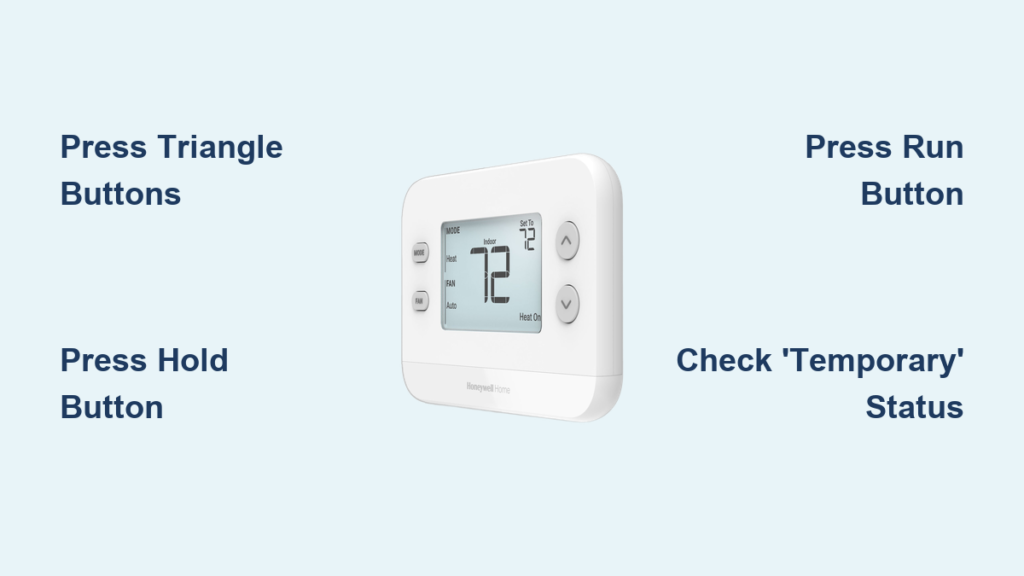
Your Honeywell thermostat stubbornly sticks to its schedule while you’re freezing in your own living room. Maybe you’re working from home unexpectedly, hosting last-minute guests, or simply need relief from a poorly timed temperature setback. You need immediate control without erasing your carefully programmed energy-saving schedule. This guide delivers precise, model-specific instructions to override any Honeywell Home thermostat—temporarily or permanently—using only the buttons on your device. You’ll regain comfort within seconds while preserving your existing settings.
Press Triangle Buttons for Immediate Temperature Change
Your fingers find the triangle-shaped up and down buttons on the thermostat face within seconds. Press the up triangle to raise the temperature or the down triangle to lower it. The display instantly flashes your new target temperature while showing “Temporary” in the corner. This bypasses your current schedule immediately, triggering heating or cooling to reach your requested setting. Your system responds within 30-60 seconds, but the override lasts only until your next scheduled period begins—typically 2-12 hours depending on your program.
Confirm Your Temporary Override Is Active
Check these critical visual cues after pressing the temperature buttons:
– “Temporary” appears prominently on the screen
– The current program period (like “Wake” or “Away”) flashes
– Your new temperature displays for 5 seconds before showing room temperature
– Heating/cooling indicator activates (flame or snowflake icon)
When Your Schedule Automatically Resumes
Your manual adjustment ends precisely at these schedule triggers:
– The next programmed wake-up period begins
– Your scheduled “Away” mode activates when leaving home
– The evening “Sleep” period starts automatically
– Most models revert within 12 hours even without scheduled changes
Activate Hold Mode for Permanent Temperature Control
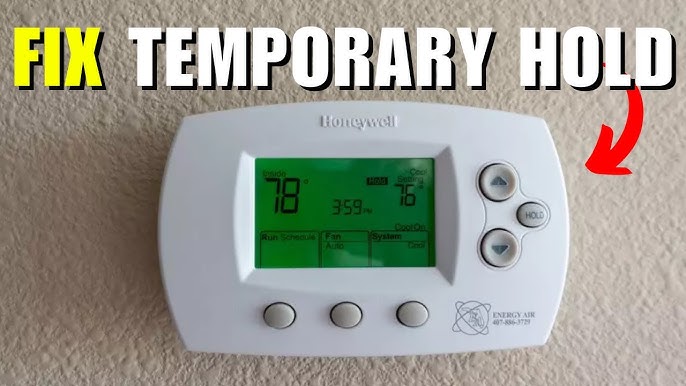
Set your desired temperature first using the triangle buttons—the display shows it briefly before returning to room temperature. Immediately press the Hold button (usually labeled “Hold” or featuring a hand icon). The word “Hold” appears solidly on screen, confirming your permanent override. Your thermostat now ignores all scheduled changes until you manually cancel this mode, maintaining your selected temperature 24/7 regardless of time of day.
Critical Changes During Hold Mode
When “Hold” appears, understand these system behaviors:
– All scheduled temperature changes stop completely
– Your single temperature setting runs continuously without setbacks
– Morning warm-ups and night-time energy savings are suspended
– The override continues indefinitely until you intervene
Avoid the Hold Mode Trap
Many users accidentally trigger permanent overrides by:
– Pressing Hold immediately after adjusting temperature without realizing
– Forgetting to cancel Hold mode after vacation or illness
– Misinterpreting the “Hold” indicator as a system error
– Expecting automatic reversion to schedule after 24 hours
Press Run Button to Instantly Restore Schedule
Cancel any override—temporary or permanent—with one decisive action. Locate the Run button (often near the Hold button) and press it firmly once. The “Hold” indicator vanishes immediately, and your thermostat snaps back to the temperature programmed for the current time period. Your original schedule resumes without losing any settings, restoring energy-saving setbacks and automatic adjustments.
Verify Your Schedule Has Returned
After pressing Run, confirm success by checking:
– “Hold” no longer appears anywhere on the display
– Current temperature matches your programmed setting for this time
– The next scheduled period (e.g., “Sleep” at 10 PM) shows correctly
– System begins adjusting toward the scheduled temperature if needed
Emergency Reset When Run Button Fails
If pressing Run doesn’t cancel the override:
1. Turn the thermostat power off at the circuit breaker for 30 seconds
2. Restore power and wait for screen to illuminate
3. Press Run within 10 seconds of restart
4. Your full programmed schedule reloads automatically
Series 2000 Override Protocol (Pro/R2000 Models)

These popular models follow universal override principles but require precise mode verification. Before adjusting temperature, confirm your heat/cool switch position matches current needs—set to “Heat” in winter or “Cool” in summer. Attempting overrides in “Off” mode fails completely. The system responds only when the switch aligns with active seasons and current conditions.
Heat/Cool Switch Positioning Critical
Ensure correct switch placement before overriding:
– Heat position: Required for winter overrides (red indicator visible)
– Cool position: Mandatory for summer temperature changes (blue indicator)
– Off position: Disables all override functions completely
– Never adjust during system defrost cycles (common in heat pump models)
Set Point Display Behavior Explained
After pressing Hold on Series 2000 models:
– Screen shows “Set” next to your target temperature briefly
– Automatically switches to room temperature after 5 seconds
– This transition confirms normal operation—not a malfunction
– System continues working toward your set point despite the display change
TH2210/TH2110 Model-Specific Override Sequence

These models use the universal three-step process but feature a critical three-position switch. Verify the heat-off-cool switch is set correctly before any override attempt—positioned to “Heat” or “Cool” but never “Off”. The switch must match your desired operation; overrides fail if set incorrectly. After setting temperature and pressing Hold, the display behaves normally by showing room temperature after 5 seconds.
Heat-Off-Cool Switch Operation
This unique switch controls override functionality:
– Heat position: Enables heating schedule overrides only
– Cool position: Activates cooling schedule overrides only
– Off position: Blocks all temperature adjustments
– Never override during system transitions between modes
Normal Operation Indicators to Monitor
When overrides work correctly on TH2210/TH2110 models:
– Setpoint temperature disappears after 5 seconds (normal behavior)
– Room temperature display remains stable during operation
– Heating/cooling system activates within 60 seconds
– Temperature gradually changes toward your target setting
Smart Override Strategies for Energy Savings
Use temporary overrides for short-term comfort needs lasting 2-4 hours—like unexpected work-from-home days or evening guests. This maintains most schedule benefits while providing flexibility. The system automatically reverts to energy-saving setbacks, preserving your 15-25% potential savings from programmed temperature reductions.
When Permanent Hold Mode Is Justified
Choose permanent overrides only for extended scenarios:
– Vacations at home exceeding 3 days with irregular schedules
– Medical conditions requiring constant temperature stability
– System diagnostics when testing heating/cooling performance
– Shift workers with unpredictable daily routines
Costly Override Mistakes to Avoid
Prevent energy waste and system strain by:
– Never overriding in incorrect heat/cool mode (wastes 30%+ energy)
– Expecting instant results—allow 1-2 hours for significant temperature changes
– Forgetting to cancel Hold after temporary needs end
– Overriding during defrost cycles (causes system lockouts)
System Response Expectations During Overrides

Heating or cooling to your new set point takes 45-90 minutes depending on these factors:
– Temperature gap (larger differences take significantly longer)
– HVAC system age and capacity (older units work slower)
– Home insulation quality (poor insulation doubles adjustment time)
– Outdoor extremes (below-freezing temps slow heating dramatically)
Display vs. Actual Temperature Reality
Understand what your thermostat shows:
– Room temperature displays 95% of the time during operation
– Set point appears only briefly after manual adjustments
– “Temporary” or “Hold” indicators confirm override status
– Flashing program periods warn when schedule reversion is near
Energy Impact You Can’t Ignore
Permanent overrides carry significant costs:
– 15-25% higher energy bills from eliminating setbacks
– Lost savings from morning warm-up and night-time cooling reductions
– Increased equipment wear from constant operation
– No automatic optimization for weather changes or occupancy
Three-Step Override Cheat Sheet
Temporary Override (Schedule Resumes Automatically):
1. Press triangle buttons to adjust temperature
2. Confirm “Temporary” appears with flashing program period
3. Enjoy comfort until next scheduled time period begins
Permanent Override (Hold Mode):
1. Set temperature with triangle buttons
2. Press Hold immediately—watch for solid “Hold” indicator
3. Maintain single temperature until manually canceled
Cancel Any Override Instantly:
1. Press Run once—no holding required
2. Verify “Hold” disappears from display
3. Schedule resumes at current time period’s setting
Visual Confirmation Quick Reference
✓ “Temporary” + flashing period = Short-term override active
✓ Solid “Hold” indicator = Permanent override engaged
✓ No special indicators = Following programmed schedule
✓ Flashing current period = Override expires at next schedule change
Your original schedule remains safely stored even during extended overrides. Press Run at any time to instantly restore energy-saving automation—no reprogramming needed. Use temporary overrides for daily flexibility and reserve permanent Hold mode only for true schedule mismatches. This precision control ensures comfort without sacrificing efficiency, putting you in charge of your home climate within seconds.



