
Your video call freezes during a critical presentation. Netflix buffers endlessly while your family groans. Downloads crawl at a snail’s pace despite paying for “high-speed” internet. If slow Wi-Fi at home has you tearing your hair out, you’re not alone—over 60% of households experience frustrating connectivity issues weekly. The good news? Most slowdowns stem from fixable problems, not your internet plan. This guide cuts through the noise with actionable steps to diagnose and solve your slow Wi-Fi at home crisis in under an hour.
Stop blaming your ISP or upgrading blindly. Real solutions start with pinpointing whether the bottleneck lives in your router, signal interference, or hidden network hogs. We’ll walk through proven diagnostics you can run with free tools and fixes that deliver instant results—no technical degree required.
Pinpoint Your Wi-Fi Speed Bottleneck
Run Accurate Speed Tests
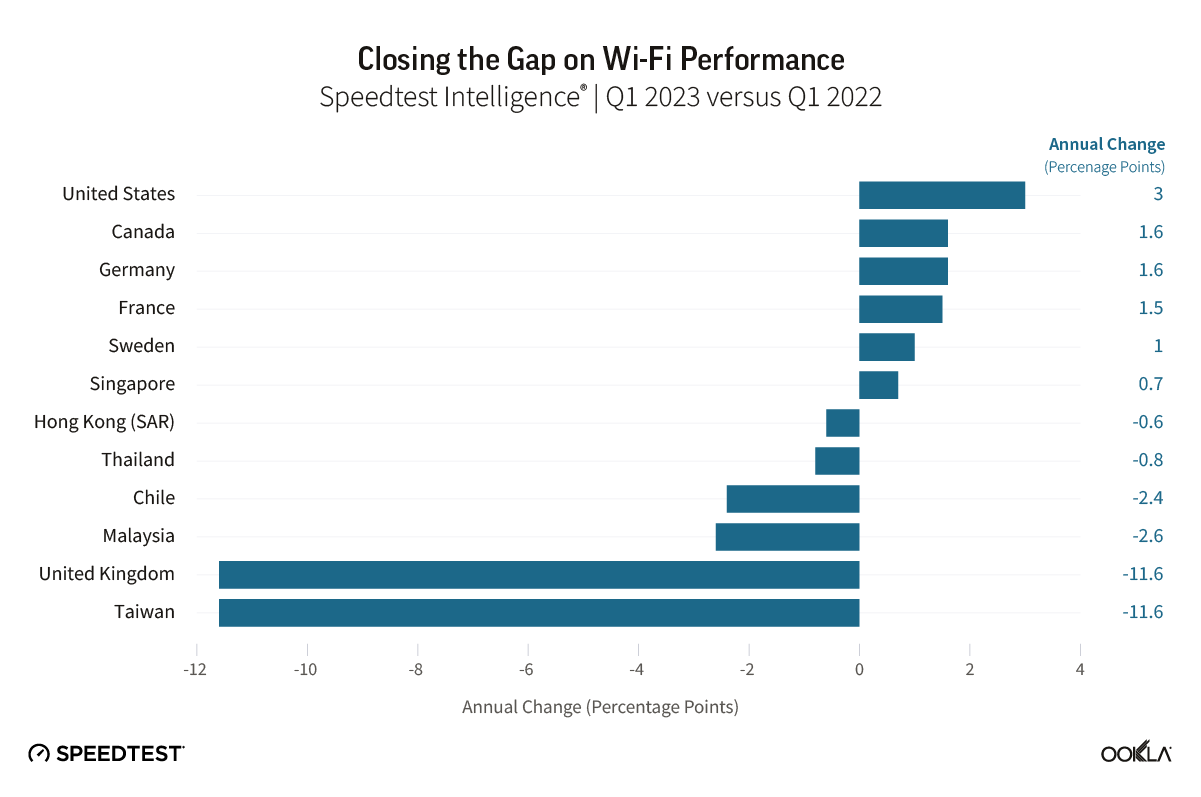
Skip the phone-in-hand guesswork—your real issue hides in precise measurements. First, connect a laptop directly to your modem via Ethernet cable (bypassing the router). Run tests at speedtest.net or fast.com. This reveals your true ISP-delivered speed. If wired results hit 90% of your plan’s advertised rate but Wi-Fi crawls, your wireless setup is the culprit.
Now test Wi-Fi performance room-by-room with your phone. Note dramatic drops near kitchens (microwaves interfere) or brick walls. For peak-hour slowdowns, log speeds between 7-10 PM for three days. If speeds plummet only during these hours, provider congestion—not your equipment—is likely the villain.
Detect ISP Throttling Instantly
Your provider might be secretly throttling your connection. Test this by running speed tests with and without a VPN. If speeds jump 30%+ with a VPN enabled (like NordVPN or ExpressVPN), your ISP is restricting specific traffic—common for streaming or torrenting. This confirms you need a long-term solution like switching providers or permanent VPN use, not just router tweaks.
Execute These Router Fixes Immediately
Power Cycle Like a Pro
Unplug both modem and router for exactly 60 seconds—less time won’t clear memory buffers. Plug the modem in first and wait until all lights stabilize (usually 2 minutes), then power on the router. This fixes 40% of slowdowns by flushing corrupted data and applying pending firmware updates. For recurring issues, buy a $15 smart plug to schedule automatic weekly reboots at 2 AM.
Optimize Router Placement in 5 Minutes
Move your router off the floor and away from metal objects. Place it centrally on a shelf or bookcase, at least 3 feet from microwaves, cordless phones, or baby monitors. In multi-story homes, angle one antenna horizontally to beam signals vertically between floors. Avoid basements or closets—concrete walls can slash signal strength by 70%.
Switch to Uncrowded Wi-Fi Channels
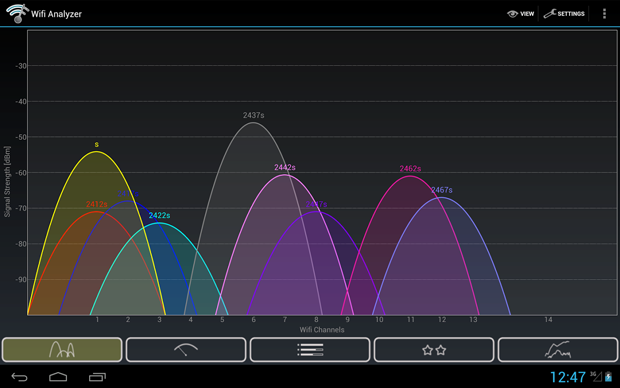
Overlapping channels from neighbors cripple 2.4 GHz networks. Download the free Wi-Fi Analyzer app (Android) or NetSpot (Mac/PC). Scan for congested channels: if Channels 1, 6, and 11 show heavy traffic, switch your router to the least crowded option. For 5 GHz networks, pick channels above 36 (like 149 or 165) where interference is rare. Access your router’s admin page (192.168.1.1) to make changes—look under “Wireless Settings.”
Slash Network Congestion Now
Kick Bandwidth-Hogging Devices Off
Your router may support 50+ devices you’ve forgotten about. Log into your router’s interface (check the label for the login URL) and review “Attached Devices.” Immediately disconnect unknown devices (like a neighbor’s laptop) and idle gadgets (old tablets, smart bulbs updating nightly). One hidden device running background backups can consume 80% of your bandwidth.
Prioritize Critical Traffic with QoS
Stop video calls freezing during Zoom meetings. Enable Quality of Service (QoS) in your router settings—often under “Traffic Control” or “Gaming Mode.” Assign top priority to video conferencing apps (Zoom, Teams) and streaming services (Netflix, YouTube). This ensures your work call never buffers because your kid’s TikTok binge ate all bandwidth.
Isolate Guests on a Separate Network
Create a password-protected guest network through your router’s admin panel. Crucially, set bandwidth limits (e.g., 50 Mbps max) to prevent visitors from hogging your main connection. This stops your cousin’s 4K movie marathon from crashing your online class—and blocks guests from accessing your smart home devices.
Upgrade Equipment Without Wasting Money
Replace Routers Older Than 2019
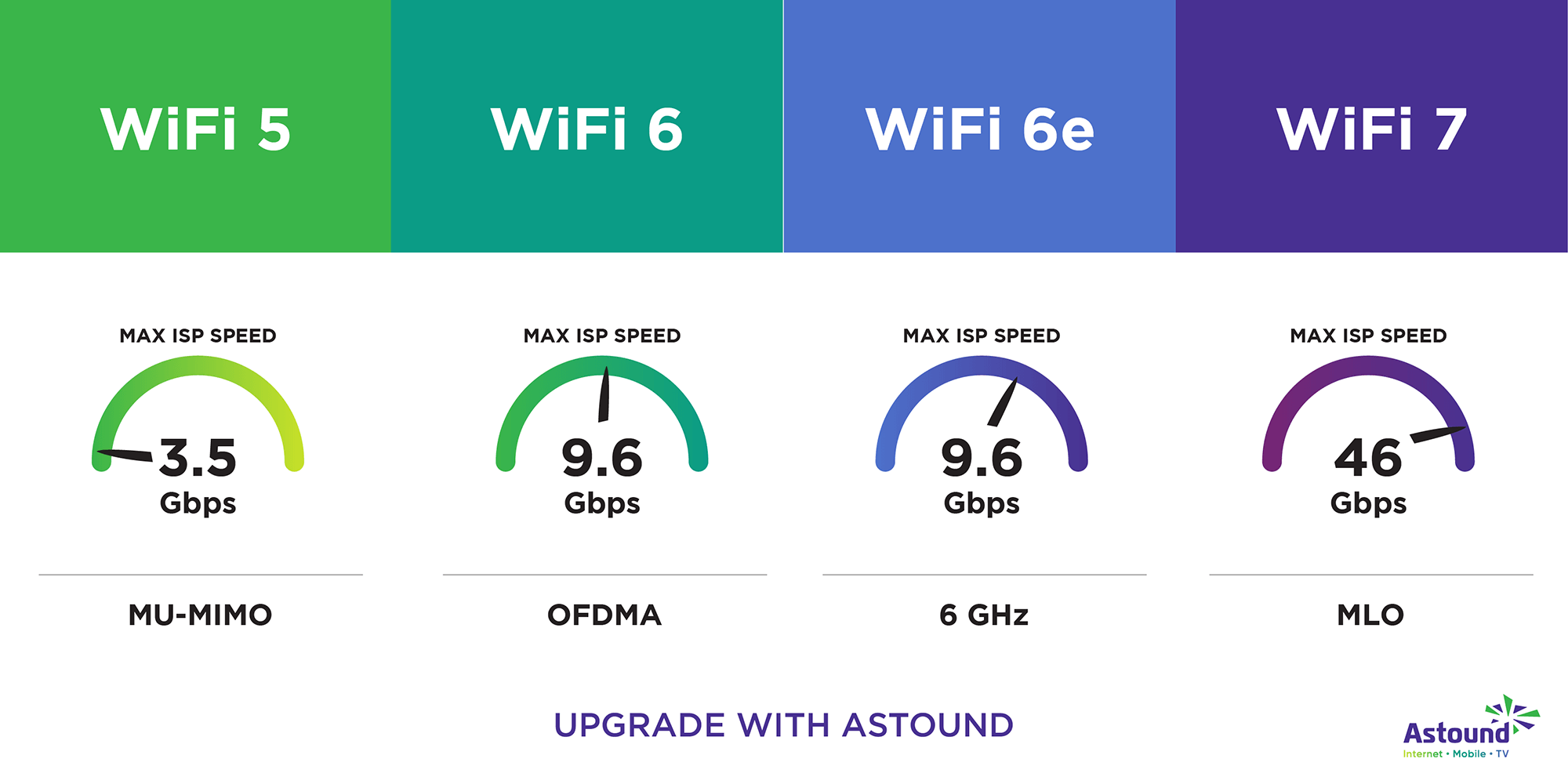
Wi-Fi 5 routers (802.11ac) bottleneck modern gigabit plans. Upgrade to Wi-Fi 6 (802.11ax) for 40% faster speeds with multiple devices. The NETGEAR Nighthawk RS300 ($199) handles 9+ Gbps across 100+ devices—ideal for smart homes. Avoid “gigabit” routers under $100; they often lack proper antennas for whole-home coverage.
Deploy Mesh Nodes Strategically
Place mesh extenders halfway between dead zones and your router—not in the dead zone itself. For 2,500 sq. ft. homes, a tri-band system like Orbi 960 ($400) covers everything with just two nodes. Ensure nodes connect via 5 GHz backhaul channels (not 2.4 GHz) for seamless roaming. Skip extenders if your router supports Ethernet backhaul—they’re 3x faster.
Hardwire High-Bandwidth Devices
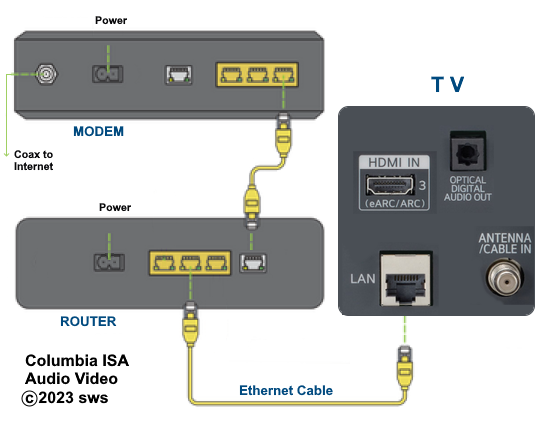
Connect smart TVs, gaming consoles, and work PCs via Ethernet. Use Cat 6 cables (under $15 for 16 ft) to eliminate buffering permanently. This frees up 50-70% of your wireless bandwidth for phones and laptops. For wall-mounted TVs, run cables through baseboards or use flat “in-wall” rated cables.
Advanced Fixes for Stubborn Slowdowns
Scan All Devices for Bandwidth-Stealing Malware
Run Malwarebytes on every computer—especially older Windows PCs. Malware often hijacks bandwidth for crypto-mining or botnets, slowing your entire network. Check Task Manager for unusual “Network” usage spikes when devices are idle.
Update Router Firmware Monthly
Outdated firmware causes hidden slowdowns. Check your manufacturer’s website (e.g., “ASUS firmware updates”) for new versions. Enable “Auto-Update” in router settings if available. Never skip updates—many patch security flaws that invite bandwidth-sucking intruders.
Replace Damaged Cables Immediately
Inspect coaxial and Ethernet cables for kinks or chew marks. A single frayed coaxial cable from your ISP can slash speeds by 50%. Swap suspect cables with new ones (Cat 6 for Ethernet, RG6 for coaxial). Always hand-tighten connectors—overtightening cracks ports.
Tailor Solutions to Your Home
Large Homes: Optimize Multi-Story Coverage
Position mesh nodes on each floor’s central hallway, 30-50 feet apart. For 3,000+ sq. ft. homes, add a dedicated backhaul channel (tri-band mesh) to prevent node-to-node slowdowns. Use weatherproof extenders like TP-Link Deco XE75 for patios—just plug into outdoor outlets.
Gamers & Streamers: Guarantee Lag-Free Performance
Reserve 5 GHz Channel 161 exclusively for gaming consoles. Set QoS to prioritize “Xbox Live” or “Steam” traffic. For 4K streaming, hardwire your TV and ensure 25+ Mbps per stream—buffering happens below 15 Mbps.
Work-From-Home: Stabilize Video Calls
Position your desk within 10 feet of the router or mesh node. In QoS settings, prioritize “Upload” bandwidth (critical for Zoom) since cable plans offer 5-10x less upload than download speed.
Maintain Blazing Speeds Long-Term
Schedule Monthly Reboots
Set a recurring phone alarm for the first Sunday of each month. Power-cycle your modem/router—it prevents memory leaks that cause 15-20% speed erosion over time.
Monitor Bandwidth Hogs Weekly
Use your router’s free app (like ASUS Router) to spot data-hungry devices. If your security camera uses 200 GB/week, lower its resolution. Cap smart TVs to 15 Mbps during work hours.
Plan Smart Upgrades Annually
Compare your actual speeds (via speedtest.net) against your plan’s advertised rate every 12 months. If consistently below 50%, upgrade to fiber (for symmetrical upload/download) or Wi-Fi 7 gear. Replace routers every 3-5 years—Wi-Fi standards evolve fast.
Key Takeaways
Fixing slow Wi-Fi at home starts with smart diagnostics: test wired vs. wireless speeds, identify peak-hour patterns, and check for ISP throttling. Most households fix 80% of issues with three moves—rebooting properly, optimizing router placement, and pruning unused devices. For persistent dead zones, strategic mesh upgrades beat random extenders. Crucially, maintain speed gains by scheduling monthly reboots and monitoring bandwidth hogs. Stop suffering through buffering—implement these steps tonight, and stream, game, and work without frustration by tomorrow morning.



