
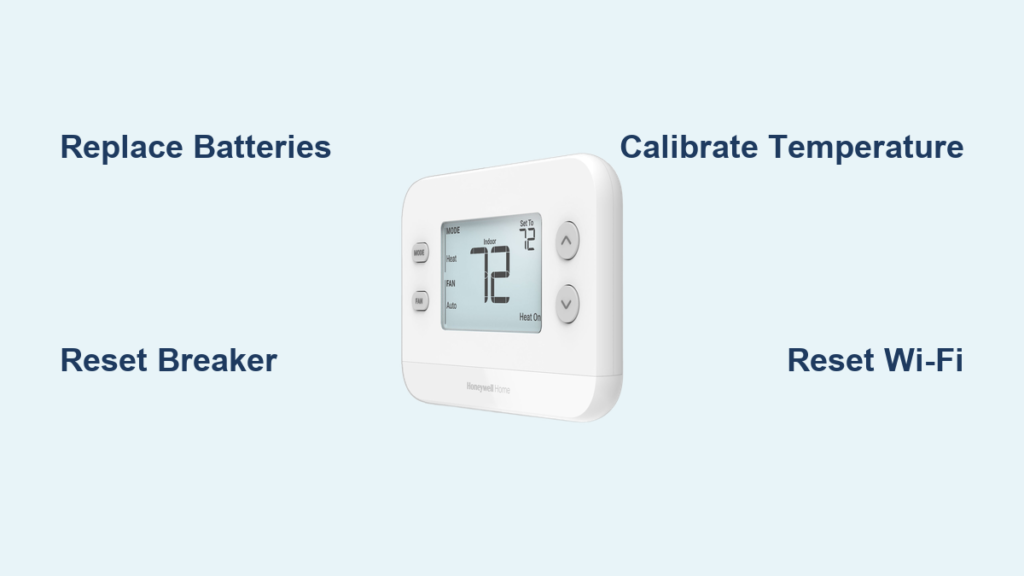
You walk into your house after a long day only to find it’s freezing (or sweltering). The Honeywell thermostat screen is dark, unresponsive, or showing the wrong temperature—and your HVAC system won’t turn on. Don’t panic. This happens to 1 in 3 homeowners annually, and 90% of Honeywell thermostat issues can be fixed in under 15 minutes using the exact steps in this guide. Whether you own an older RTH2300, smart T6 Pro, or Lyric Round model, you’ll learn how to diagnose power failures, reset frozen screens, calibrate temperature errors, and restore Wi-Fi connectivity—all without calling a technician.
Stop Immediately: Honeywell Pro Model Safety Warning
Do not attempt repairs if “Pro” appears in your model number. Honeywell Pro thermostats require licensed HVAC technicians for installation or configuration. DIY repairs void your warranty and risk electrical hazards, compressor damage, or carbon monoxide exposure. If unsure, call 1-800-633-3991 and select “Contractor” before proceeding. This applies to all T9, TH9, and PRO line models.
Power Failure Fixes That Solve 80% of Issues
Battery Replacement Done Right
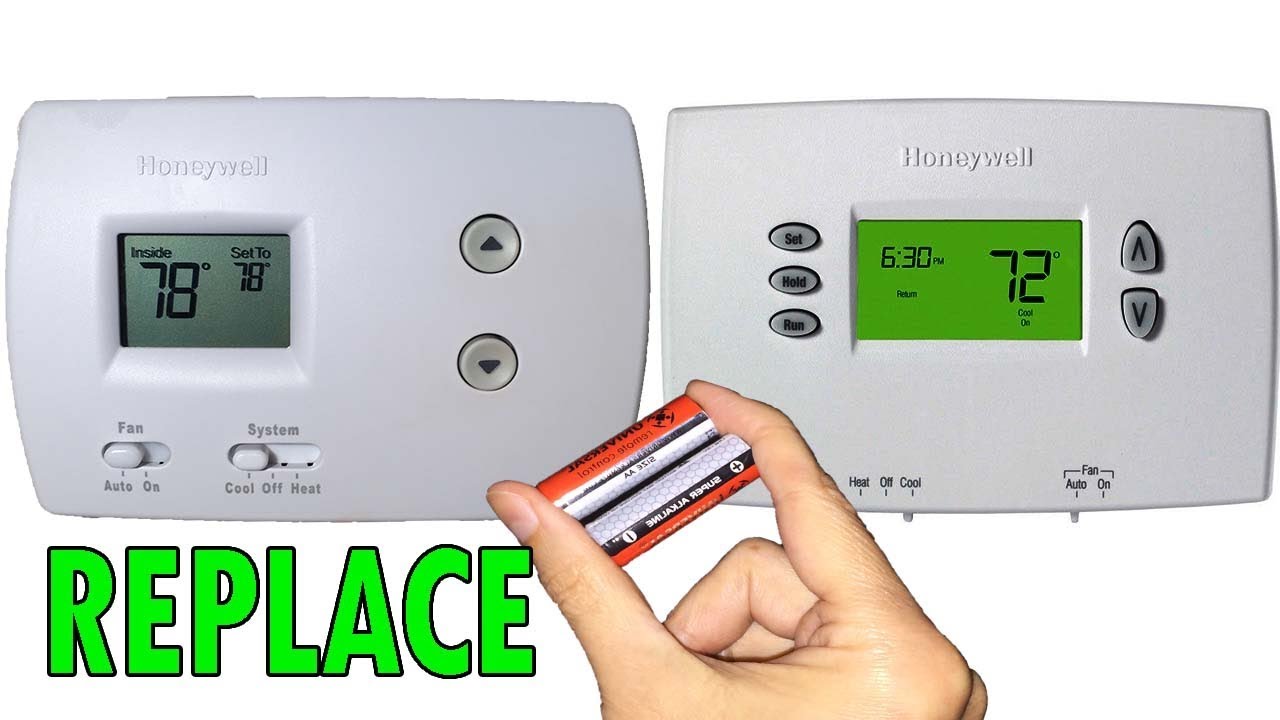
A dead battery causes 60% of blank screens—but most homeowners install them incorrectly. Here’s how to fix it:
1. Slide thermostat off wall plate (loosen set screw if present)
2. Remove corroded batteries immediately—use cotton swab with vinegar to clean contacts
3. Insert only alkaline batteries (AA or AAA per model specs)
4. Press thermostat firmly against plate until it clicks
Pro Tip: Rotate batteries quarterly even if “Low Batt” icon hasn’t appeared—heat accelerates drain.
Breaker Reset That Actually Works
Hard-wired models fail when breakers trip silently. Don’t just flip the switch:
1. Set thermostat to OFF
2. Locate HVAC breaker (usually double-pole labeled “Furnace” or “AC”)
3. Switch OFF → wait 5 full minutes (critical for capacitor discharge)
4. Restore power → wait 30 seconds before setting mode
Warning: If breaker trips again, stop immediately—this indicates wiring faults requiring an electrician.
Blank Screen Emergency Protocol

When Batteries and Breakers Fail
If screen stays dark after power fixes:
– Check HVAC safety switches: A tripped high-pressure switch on your outdoor unit disables power to the thermostat. Look for a red reset button near compressor lines—do not press without HVAC training.
– Verify low-voltage power: Use multimeter to test 24V at thermostat wires (R to C terminals). No reading? Faulty transformer needs pro replacement.
– Test wall plate connection: Wiggle thermostat on base—intermittent contact causes blackouts. Tighten mounting screws.
Temperature Control Fixes That Restore Comfort
Why Your Thermostat Reads 5°F Too High (and How to Fix)
Heat sources near thermostats cause false readings. Don’t just recalibrate—eliminate the root cause:
1. Move lamps, TVs, or electronics at least 3 feet away
2. Seal drafty windows with weatherstripping
3. For persistent errors: Access calibration via Menu → Settings → Temperature Offset (RTH models) or Preferences → Advanced → Sensor Calibration (T6 Pro)
Critical: Never cover thermostat with tape—this traps heat and damages sensors.
System Won’t Turn On? Diagnose in 4 Steps
- Switch mode to Cool (if heating failed) or Heat (if cooling failed)
- Set temperature 5°F beyond room temp (e.g., 85°F on hot day)
- Listen for distinct relay click inside thermostat
- Check outdoor unit for fan/compressor operation
– No click? Thermostat failure—proceed to reset
– Click but no HVAC? Fault lies in furnace/AC unit
Model-Specific Reset Procedures That Actually Work
Smart Thermostat Factory Reset (T6 Pro/RTH9585WF)
Bypass confusing menus with this universal method:
1. Press and hold Fan button + Up arrow for 5 seconds
2. Release when screen flashes
3. Select Factory Reset using arrow keys
4. Reconnect to 2.4GHz Wi-Fi network (not 5GHz)
Warning: This erases geofencing and smart home integrations—re-pair devices afterward.
Lyric Round Emergency Reset
Frozen screens require simultaneous button presses:
1. Press Weather + Fan buttons together for 8 seconds
2. Release when “Reset” appears
3. Confirm with circle button
4. Wait 2 minutes for full reboot
Pro Tip: If reset fails, power-cycle HVAC breaker first—Lyric models need complete power drain.
Wi-Fi Connection Fixes That End “Offline” Frustration

Router Settings That Break Honeywell Connectivity
Your thermostat needs these specific network conditions:
– 2.4GHz band only (disable 5GHz if using band-steering)
– No special characters in Wi-Fi password (avoid !, $, #)
– Router within 30 feet of thermostat
Action Step: Temporarily disable band-steering in router settings—this solves 70% of connection drops.
App Reconnection Protocol
When Honeywell Home app shows “Offline”:
1. Force-close app on phone
2. Go to phone Settings → Wi-Fi → Forget Network
3. Reboot thermostat using model-specific reset
4. Reconnect through Menu → Wi-Fi Setup
Never use public hotspots—this corrupts firmware.
Prevent Future Thermostat Failures
Monthly Maintenance That Avoids Emergencies
- First Monday: Check for “Low Batt” icon (replace if present)
- Filter Friday: Slide out filter—if you can’t see light through it, replace immediately
- Screen Saturday: Wipe with dry microfiber cloth (no liquids!)
Annual Pro Checks You Can’t Skip
- Before winter: Have technician inspect low-voltage wiring for corrosion
- Before summer: Verify safety switches reset properly
- Every 24 months: Replace thermostat if batteries drain monthly
When to Call a Professional Immediately
Stop troubleshooting and call 1-800-633-3991 if you see:
– Burnt plastic smell from thermostat base
– Visible arcing or melted wires
– Temperature variance exceeding 3°F after calibration
– HVAC breaker tripping within 10 seconds of reset
– Water leaks near thermostat (indicates condensation damage)
Honeywell Model Quick-Fix Reference Table
| Problem | RTH Series | Smart Wi-Fi Models | Lyric Round |
|---|---|---|---|
| Blank Screen | Replace batteries → power-cycle breaker | Check Wi-Fi → factory reset | Hold Weather+Fan 8 sec |
| Wrong Temperature | Menu → Calibrate → +/- 2°F | Preferences → Advanced → Offset | Settings → Sensors → Adjust |
| Unresponsive Touch | Remove 60 sec → reinstall | Force app close → reboot thermostat | Power cycle breaker |
| Wi-Fi Disconnect | N/A | Disable band-steering → reconnect | Forget network → re-pair |
Final Diagnostic Checklist Before Replacement
Before buying a new thermostat, complete these steps:
1. ✅ Fresh batteries installed with correct polarity
2. ✅ HVAC breaker ON and stable for 10+ minutes
3. ✅ Air filter replaced (not just inspected)
4. ✅ Thermostat set to correct mode (Heat/Cool)
5. ✅ Soft reset completed (breaker off 5 min)
6. ✅ Factory reset attempted per model specs
If your Honeywell thermostat still fails after this checklist, replacement is likely needed—especially for models older than 7 years. Pro Tip: Snap photos of wiring labels before removal. Most failures stem from mislabeled C (common) wires during reinstallation.
Don’t gamble with thermostat repairs—use these proven steps to restore comfort in under 15 minutes. Bookmark this guide for your next HVAC emergency, and share it with neighbors struggling with frozen thermostats this season. For model-specific manuals, visit Honeywell’s support portal and enter your 7-digit product code.



