
Your Tesla’s “Navigate Home” feature becomes useless if it’s pointing to your old address after a move. Whether you’ve just relocated or simply need to update your home location for better navigation accuracy, knowing how to change home on Tesla across all systems is essential. This guide reveals the three official methods to update your home address—through your vehicle’s touchscreen, the mobile app, and Tesla’s website—plus troubleshooting tips when changes don’t take effect immediately. You’ll learn exactly where to tap, what to enter, and how to verify the update works before hitting the road.
Update Home Address Using Tesla Touchscreen

Changing your home location directly from your vehicle’s interface delivers instant results without waiting for sync delays. This method works whether your Tesla is parked in your garage or sitting at a charging station.
Access Navigation Settings Menu
Tap the compass icon in your Tesla’s bottom control bar to open navigation. Look for the settings gear icon in the top-right corner of the navigation screen and tap it. Depending on your vehicle’s software version, locate either “Home” or “Manage Locations” in the settings menu—both options appear consistently in the same section regardless of minor UI variations between model years.
Enter New Home Address Correctly
Clear your existing address by tapping the “X” icon next to the current home location field. Begin typing your new address slowly, allowing Tesla’s autocomplete system to suggest matches after entering just 3-4 characters. Select your exact address from the dropdown suggestions rather than completing the full entry manually—this ensures your vehicle recognizes the standardized format required for accurate navigation routing.
Confirm and Test the New Home Location
Tap “Save” or “Set as Home” once your address appears correctly in the field. Immediately verify the change by pressing and holding the navigation button on your steering wheel, then saying “Navigate Home” clearly. Watch as your vehicle calculates a route to your new address. This change applies instantly to the current vehicle only and doesn’t automatically update other Teslas in your account or the mobile app.
Modify Home Location in Tesla Mobile App

Updating your home address through the Tesla app gives you remote control when you’re at your new house without your vehicle nearby. This method proves especially valuable when unpacking boxes and realizing your navigation needs immediate adjustment.
Open Vehicle Navigation Settings
Launch the Tesla app and select your vehicle from the main screen. Tap the settings gear icon, then navigate to “Navigation” or “Location Services” depending on your app version. Your current home address appears prominently at the top of this menu, clearly labeled and ready for editing.
Update Address with Precision
Tap the home address field to activate the editing interface. Delete the existing address and enter your new location, allowing your phone’s location services to suggest matches. Carefully verify the location pin on the mini-map aligns precisely with your driveway, not just the street center. Many users make the mistake of selecting the closest street match without checking the exact pin placement.
Force Immediate Vehicle Sync
After saving your changes, the app shows a “Syncing” indicator for approximately one minute. To ensure your vehicle receives the update right away, stand near your parked Tesla while keeping the app open. Your vehicle downloads the new home address the next time it connects to WiFi or cellular data, but proximity triggers an immediate sync rather than waiting for the scheduled connection.
Change Address Through Tesla Account Website
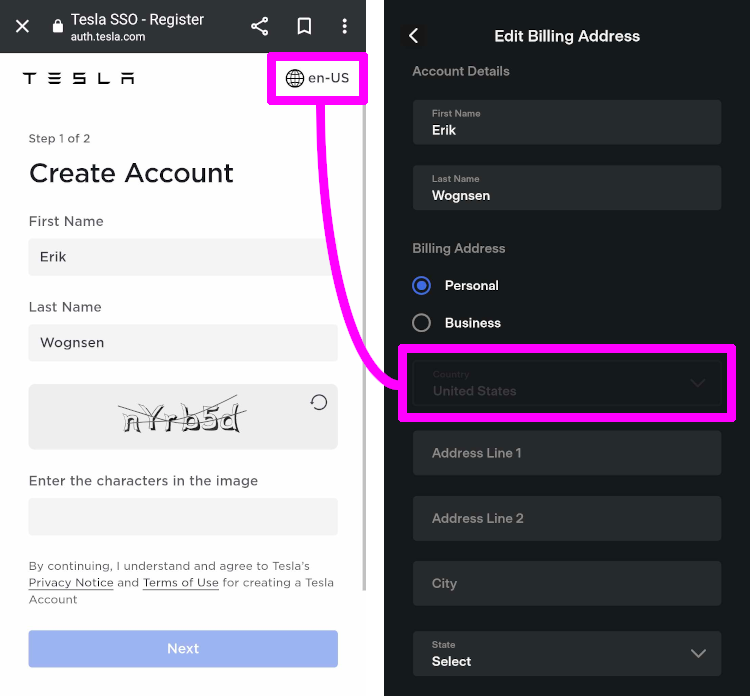
Tesla’s web interface provides the most comprehensive control for owners with multiple vehicles or those who prefer managing settings from a computer.
Access Account Vehicle Settings
Sign into your Tesla account at tesla.com and click your profile picture in the top-right corner. Select “Account Settings” then navigate to “Vehicle Details.” You’ll find individual home address settings for each Tesla registered to your account, listed with their respective vehicle names or VINs.
Update Address for Specific Vehicles
Click “Edit” next to the vehicle requiring the home address change. Enter your new address using the exact format Tesla expects: full street number and name, city, state abbreviation, and complete ZIP code. The website validates addresses against official postal records, preventing common typos that would cause navigation errors later.
Confirm Fleet-Wide Changes
After saving, Tesla pushes the updated address to the selected vehicle within 5-10 minutes. If you own multiple Teslas that all need the same home address, repeat this process for each vehicle. The website displays a “Last Updated” timestamp next to each address, giving you visual confirmation that your changes have processed successfully.
Troubleshoot Common Address Update Problems
Even when following the correct procedures, Tesla sometimes rejects your new address or fails to sync changes properly. These solutions resolve the most frequent issues owners encounter.
Fix Invalid Address Errors
When Tesla rejects your address entry, try alternative formatting: “123 Main Street” instead of “123 Main St” or include your full ZIP+4 code. For new construction areas not yet in mapping databases, temporarily set your home address to the nearest major intersection until official maps update.
Force Sync When Changes Don’t Apply
If your touchscreen still shows the old address after an app or website update, perform a touchscreen reboot. Hold both steering wheel scroll buttons simultaneously for 10 seconds until the screen goes black, then release. The system restarts and pulls fresh account data, including your updated home location.
Manage Multiple Vehicle Confusion
Tesla owners with several vehicles often update the wrong car’s address by mistake. Always verify you’re editing the correct vehicle by checking the VIN or custom vehicle name before making changes. Each Tesla maintains its own independent home address setting, even when sharing the same account.
Voice Command Alternative for Hands-Free Updates
Recent Tesla software versions enable updating your home address through voice commands while driving, eliminating the need to navigate menus manually.
Activate Voice Navigation System
Press and hold the right steering wheel button, then clearly state “Navigate to [your new home address]” when prompted. Your Tesla processes this as a temporary destination first, calculating the route to your new location.
Convert Temporary Destination to Home
After the route appears, say “Save this location as home.” Your vehicle confirms with voice feedback: “Setting this as your new home address.” This method works best with straightforward addresses like “456 Oak Avenue, Denver” rather than complex rural locations.
Verify Voice Command Success
Immediately check your navigation settings menu to confirm the address saved correctly. Voice updates sync to your Tesla account just like other methods, but may take a few minutes to appear in the mobile app. Always test with a “Navigate Home” command before relying on the update.
Maintain Accurate Address Information Long-Term
Keeping your Tesla’s home address current ensures optimal performance of location-based features beyond simple navigation.
Schedule Quarterly Address Reviews
Set a calendar reminder to verify your home address every three months, especially if you notice routing inaccuracies. Small corrections—like adding your apartment number—can significantly improve navigation precision for features like automatic garage door opening.
Update Related Tesla Services
Remember to modify your address in Tesla Insurance, Solar, and Powerwall accounts separately, as these services use different address databases than your vehicle’s navigation system. Third-party apps that integrate with your Tesla may also require manual address updates.
Balance Privacy and Functionality
If privacy concerns make you hesitant to store your exact home address, consider using a nearby intersection as your “home” location. While this reduces navigation accuracy for features like Summon, it still enables basic “Navigate Home” functionality without revealing your precise residence.
Your Tesla’s home address affects more than just navigation—it influences charging schedules, location-based automation, and energy management. By following these verified methods to change home on Tesla, you’ll ensure all systems point to your current residence. Remember that procedures may vary slightly between model years and software versions, but these three core methods work across all current Tesla vehicles. Always verify changes through a test “Navigate Home” command before relying on the update during your daily commute.



