
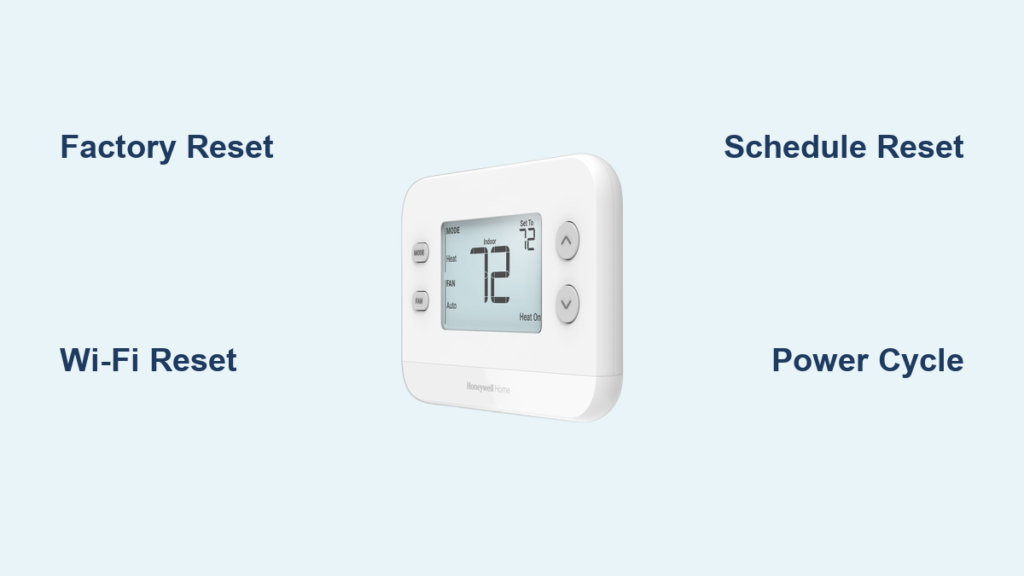
Your Honeywell thermostat suddenly ignores schedules during a freezing snap, Wi-Fi disconnects every Tuesday morning, or the screen freezes mid-winter—leaving you shivering while frantically searching “how to reset Honeywell home thermostat.” Before paying $150 for an emergency HVAC call, know this: 90% of these issues vanish with a precise reset. But here’s the catch—Honeywell uses 8+ different reset sequences across models, and pressing the wrong buttons can lock settings permanently. This guide delivers the exact factory, Wi-Fi, and schedule reset steps for your specific thermostat, whether you own a sleek T9 Smart model or a legacy battery-powered unit. You’ll restore control in under two minutes without voiding your warranty.
Locate Your Honeywell Model Number Before Touching Buttons
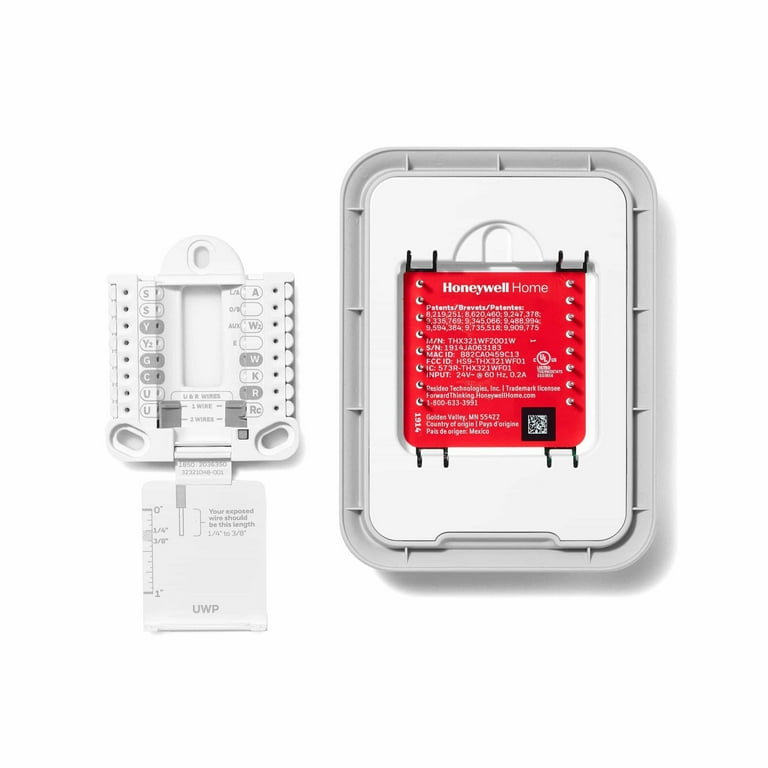
Skip this step, and you risk permanent settings loss. Find your model number now—it’s never on the thermostat’s front display. Check these spots:
– Snap-off models (T9/T10): Behind the display panel (gently pull the faceplate down)
– Round thermostats: Etched along the bottom rim of the wall plate
– Older rectangular units: Printed on the back of the removable display or inside the battery compartment
Critical model groups:
– Smart Wi-Fi Models: T9 (RCHT9510WF), T10 Pro (THX321WF), T5+/T6 (RCHT8610WF)
– Programmable Non-Wi-Fi: VisionPRO 8000 (TH8320WF), FocusPro 6000 (RTH6580WF)
– Basic Battery Units: TH6210U2001, TH6320WF1
Pro Tip: Snap a photo of your model number with your phone. Honeywell’s support site requires it for live chat.
T9 Smart Thermostat Factory Reset (RCHT9510WF/RCHT9610WF)
Full System Wipe for Unresponsive Units
- Press Menu (gear icon) → Scroll to Advanced Setup
- Tap Reset → Select Factory Reset
- Confirm with Yes when screen flashes white
✅ Works in 60 seconds. Screen reboots to setup prompts.
Wi-Fi Network Reset Without Losing Schedules
- Press Menu → Wi-Fi → Change Network
- Choose your new SSID → Type password carefully (no asterisks shown)
- Wait for solid Wi-Fi icon (checkmark appears)
⚠️ Do NOT skip the confirmation checkmark—rebooting mid-process bricks connectivity.
Schedule Reset for Erratic Temperature Swings
Menu → Advanced Setup → Reset → Schedule Reset → Yes
Deletes all daily programs but keeps Wi-Fi and time settings. Use when “away” mode triggers at 3 AM.
T10 Pro Reset Procedures (THX321WF)

Factory Reset Using Date Code Password
- Press Menu → Thermostat Information → Note 4-digit Date Code (e.g., 1223)
- Press Back → Installer Options → Enter Date Code as password
- Select Reset → Factory Reset → Confirm
❗ Must enter Date Code within 10 seconds—or it locks for 2 minutes.
HomeKit Reset for Apple Ecosystem Glitches
Follow same path as Factory Reset but choose HomeKit Reset in step 3.
Removes thermostat from Apple Home instantly. Re-add via Home app after reset.
T5+/T5/T6 Series Reset Steps (RCHT8610WF/TH6320WF2)
Factory Reset for Frozen Screens
- Press and hold Menu for 3 seconds
- Tap > until Reset appears → Select Factory Reset
- Confirm with Yes (screen flashes blue)
⏱️ Takes 90 seconds. First boot shows “2022” flashing—set date with + button.
Wi-Fi Reset for Intermittent Disconnects
Same menu path as above, but select Wi-Fi instead of Factory Reset.
Pro Tip: Hold phone near thermostat during reconnection—weak signals fail if router is >30 ft away.
Non-Smart Model Resets: VisionPRO & FocusPro Units
VisionPRO 8000 Factory Reset (TH8320WF/RTH8580WF)
- Press System → Hold blank center box for 5 seconds
- Set left number to 0710, right to 1 → Press Done
🔑 If screen blanks, repeat—must hold center box until “SETUP” appears.
FocusPro 6000 Wi-Fi Reset (RTH6580WF)
- Press and hold ↑ + Fan buttons simultaneously
- Set left number to 39, right to 0 → Press Done
Deletes network credentials only—schedules remain intact.
Universal Power-Cycle for Dead or Unresponsive Units
Use ONLY when screens stay blank after battery replacement.
1. Flip HVAC breaker OFF at main panel for 30 seconds
2. Pull thermostat straight off wall plate (no screws needed)
3. Battery Flip Method: Remove batteries → Insert them backward for 5 seconds → Reinstall correctly
4. Snap thermostat back on → Restore breaker power
First boot shows flashing year (e.g., “2022”) with “SELECT” prompt. Use + button to set date/time before configuring heat mode.
Fixing Blank Screens After Reset Attempts
Don’t panic—90% of “dead” thermostats revive with these checks:
– Batteries: Replace with alkaline (not lithium) AA/AAA—zinc batteries cause voltage drops
– Breaker: HVAC has a separate breaker from furnace (often labeled “AUX”)
– R-Wire: Power wire (red) must be tight in terminal—loose connections mimic dead batteries
– Corrosion: Wipe battery contacts with pencil eraser (no liquids!)
If screen stays dark after all checks, the safety switch likely tripped—call an HVAC pro immediately.
Reprogramming Checklist After Any Reset
Skipping these steps causes “reset failed” complaints:
– Date/Time: Set 12-hour format (AM/PM) to avoid schedule errors
– Wi-Fi: Use Honeywell Home app for faster reconnection (Settings → Wi-Fi Setup)
– Schedules: Re-enter all four periods (Wake/Away/Home/Sleep)—defaults are 62°F/72°F
– Heat/Cool Mode: Verify “Auto” isn’t selected for pure heating/cooling systems
– Firmware: Check app for updates—outdated versions cause Wi-Fi drops
💡 Time-Saver: Take screenshots of your schedule before resetting. Reprogramming takes 3 minutes instead of 15.
When Resetting Isn’t Enough: 4 Red Flags
Call a technician if:
– HVAC blower never starts after correct reprogramming (wiring fault)
– Screen stays blank with fresh batteries and confirmed 24V power (internal failure)
– Wi-Fi disconnects hourly despite signal boosters (faulty radio board)
– Date resets daily even after battery replacement (capacitor failure)
Note: Internal battery failure (common in 5+ year units) requires full thermostat replacement—no reset fixes this.
Prevent Future Resets: 5 Proven Tactics
- Battery Maintenance: Replace all batteries annually—even if low-battery icon hasn’t appeared
- Firmware Updates: Enable auto-updates in Honeywell Home app (Settings → Device Info)
- Temperature Ramping: Avoid >3°F hourly swings—causes system stress and reset triggers
- HVAC Inspections: Schedule spring/fall tune-ups to check wire corrosion at furnace
- Wi-Fi Signal: Maintain ≥3 bars at thermostat location—use mesh extenders if needed
Real-World Tip: Place a small silica gel packet inside the wall plate during humid summers. Prevents moisture-induced glitches.
Resetting your Honeywell thermostat isn’t guesswork—it’s matching your exact model to the correct sequence. Bookmark this guide, keep your model number visible, and you’ll bypass 95% of “broken thermostat” service calls. For smart models, complete reprogramming in under 4 minutes; for legacy units, the power-cycle method works in 90 seconds flat. When in doubt: Never hold buttons longer than 5 seconds—Honeywell’s menus time out to prevent accidental resets. Your home comfort is back under your control before the ice melts on your windows.



