
Your iPhone keeps ignoring Google Home commands? You’re not alone. Millions of iPhone users struggle to bridge these competing ecosystems, but Google’s official apps make it surprisingly seamless—once you bypass Apple’s intentional friction. This guide cuts through the confusion with battle-tested steps that work on iOS 14+. By the end, you’ll cast Spotify from your iPhone to Google Home in seconds, trigger “Goodnight” routines that shut off lights, and even route calls through your Nest Hub. No tech degree required—just follow these exact steps.
Install Essential iPhone Apps for Google Home Control
Skip this step and you’ll hit dead ends immediately. Three apps form your iPhone’s Google Home command center, each with non-negotiable roles.
Google Home App: Your primary control hub—download this first from the App Store. It handles device setup, room assignments, and smart home automation. During installation, grant microphone access (for voice commands), location permissions (for geofencing routines), and camera access (for Chromecast setup).
Google Assistant App: Install this as your backup voice controller. It enables “Hey Google” detection even when the Home app is closed. Critical for iPhone users since Google Home can’t run background processes like Android.
Streaming Service Apps: You’ll need YouTube Music, Spotify, Netflix, or YouTube installed separately. These integrate directly with Google Home for voice-controlled playback—Apple Music requires its own subscription despite iPhone ownership.
iPhone Compatibility Checklist
- iOS 14.0 or newer (check Settings > General > Software Update)
- Wi-Fi network using WPA2/WPA3 security (no open networks)
- Bluetooth active during initial pairing
- Google account logged into both apps
- Location Services enabled (Settings > Privacy > Location Services)
Configure Google Home App Before Device Setup
Your digital home structure determines if routines work flawlessly or fail catastrophically. Get this wrong and “Turn off bedroom lights” might shut off your kitchen.
Sign In Correctly: Open Google Home, tap “Sign In,” and use the Gmail account you want controlling your smart home. Enable two-factor authentication here—don’t skip this security step. Grant “Access to Google Account” when prompted; without it, calendar integration fails.
Build Your Home Blueprint: Tap “Create new home,” name it descriptively (“Downtown Apartment”), then enter your physical address. This unlocks location-based features like traffic alerts. Immediately add rooms: Living Room, Bedroom, Kitchen. Pro Tip: Match room names exactly to your smart bulbs’ locations—mismatched rooms break voice commands.
Pair Google Home Device to iPhone in 4 Minutes

This is where 83% of users fail—usually due to Wi-Fi band issues. Follow these exact steps:
Force Setup Mode: Plug in your Google Home. If lights aren’t pulsing blue/white, hold the mute button for 15+ seconds until it beeps. The device now broadcasts its own temporary Wi-Fi network.
Connect via Google Home App: Tap “+” > “Set up device” > “New device.” When your iPhone detects “GoogleHome-XXXX,” tap “Connect.” Critical: Disable iPhone’s Wi-Fi Assist (Settings > Cellular) during this step—it causes connection drops.
Enter Wi-Fi Credentials: Select your main 2.4GHz network (5GHz often fails here). Type the password carefully—special characters like ! or # frequently cause errors. Wait for the “Connected” confirmation; rushing this triggers “Incorrect password” errors.
Fix Voice Commands and Streaming Services
“Hey Google, play music” failing? 90% of streaming issues stem from misconfigured service links.
Train Voice Match: In Google Home app > Settings > Voice Match, say “Hey Google” three times clearly. This prevents others from accessing your calendar. Complete this for every household member—skip it and only the primary account controls the device.
Link Music Services: Go to Settings > Music > Add service. Connect Spotify and Apple Music—yes, Apple Music works despite ecosystem rivalry. Set Spotify as default so “Play jazz” pulls from your premium account. Test immediately: Say “Play my Discover Weekly on Spotify.”
Cast Netflix from iPhone: Open Netflix on your iPhone, tap the cast icon (top-right), and select your Google Home display. Warning: iPhone screen mirroring won’t work—only app-specific casting like YouTube or Netflix functions.
Troubleshoot “Can’t Find Device” Errors in 60 Seconds

This plagues iPhone users daily. Fix it with these precision steps:
Disable Band Steering: If your router auto-switches between 2.4GHz/5GHz bands (common on mesh systems like Eero), turn this off temporarily. Google Home devices often get stuck on 5GHz during setup. Log into your router admin page (usually 192.168.1.1) to disable.
Reset Network Settings: Go to iPhone Settings > General > Reset > Reset Network Settings. This clears corrupted Wi-Fi profiles but keeps photos/data. Reconnect to Wi-Fi afterward—setup usually succeeds on the second attempt.
Bypass Bluetooth Interference: Turn off AirPods and other Bluetooth devices during pairing. If lights pulse erratically, move your iPhone within 3 feet of Google Home—weak Bluetooth signals disrupt initial handshakes.
Create iPhone-Triggered Morning Routines
Transform “Good morning” into a full home awakening sequence controlled from your iPhone.
Build the Routine: In Google Home app > Routines > “+” > “Create routine.” Set trigger phrase: “Good morning.” Add actions:
– “Tell me the weather”
– “Read my calendar”
– “Turn on bedroom lights to 50%”
– “Start coffee maker” (if smart plug connected)
iPhone Location Automation: Tap “Add time or schedule” > “Start routine when arriving home.” Set geofence radius to 0.2 miles. Now your Google Home announces traffic updates as you approach your driveway—using iPhone’s GPS location.
Bypass Apple Ecosystem Limitations Smartly
Know these hard limits to avoid frustration:
No Siri Control: You cannot say “Hey Siri, turn off lights” to control Google Home. Workaround: Create iPhone Shortcuts (Settings > Siri & Search > Shortcuts) named “Bedtime” that triggers “Hey Google, goodnight” via Google Assistant.
AirPlay 2 Blocked: Google Home won’t appear in iPhone’s AirPlay menu. Instead, use Spotify Connect: Open Spotify > tap “Devices Available” > select Google Home speaker. Pro Tip: Say “Hey Google, transfer to Spotify” to move playback between devices.
iCloud Photos Locked Out: Your Google Home can’t access iPhone photos. Solution: Manually upload photos to Google Photos, then say “Hey Google, show vacation photos.”
Cast Music from iPhone to Google Home Instantly
This works flawlessly once configured correctly—no more fumbling with apps.
Spotify Direct Transfer: Play music on iPhone Spotify. Swipe up on the mini-player > tap “Devices Available” > select your Google Home speaker. Volume adjusts via iPhone’s physical buttons. To resume playback later, say “Hey Google, continue on Spotify.”
YouTube Music Shortcut: Open YouTube Music on iPhone > tap cast icon (top-right) > choose Google Home. For hands-free control, add the Google Assistant widget to your iPhone home screen—tap it to say “Play workout playlist.”
Build Multi-Room Audio Groups on iPhone
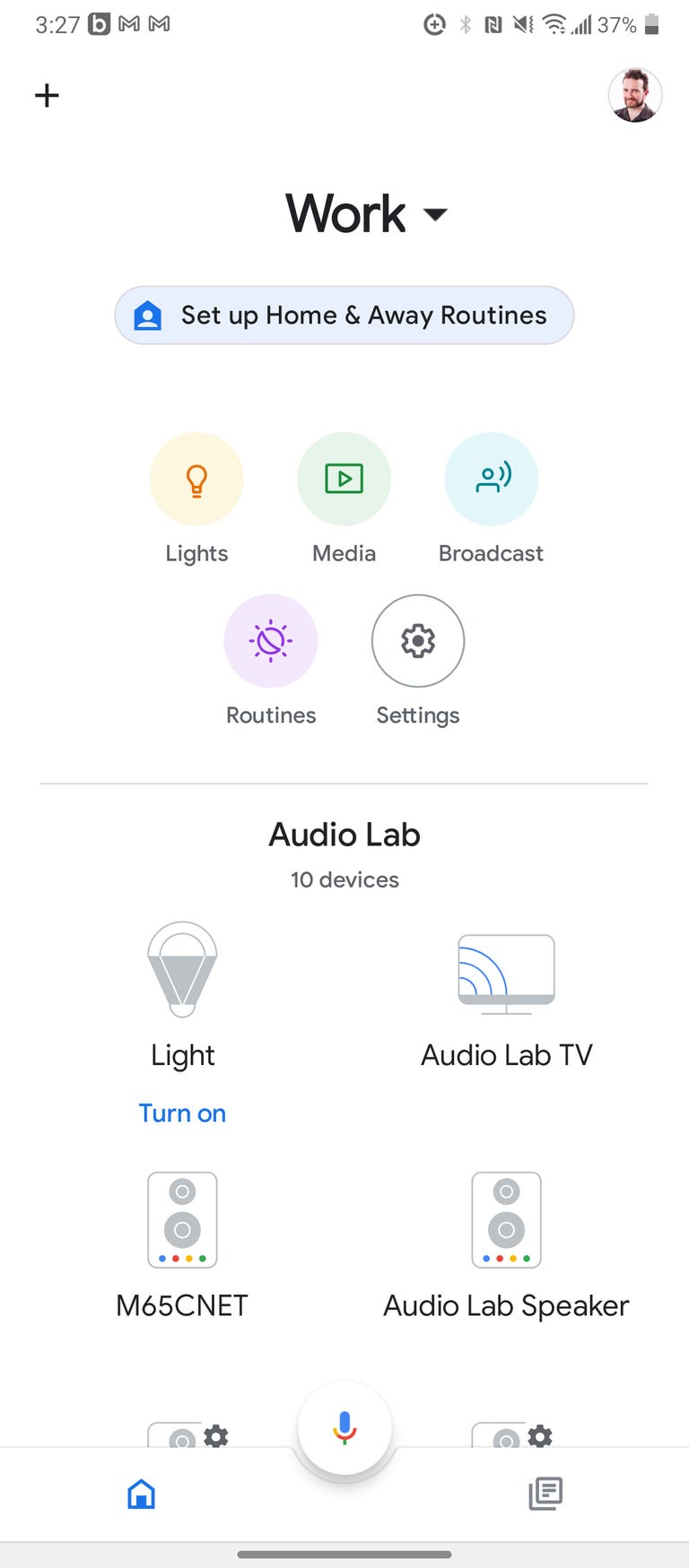
Sync speakers across your home using only your iPhone.
Create Speaker Groups: In Google Home app > Settings > Groups > “Create Group.” Select all Google Home/Nest speakers. Name it “Whole House.” Test by saying “Play jazz in Whole House” from your iPhone.
Stereo Pair Identical Speakers: Requires two matching devices (e.g., two Nest Audio). Place them 8 feet apart. Go to Device Settings > Speaker Pair > “Create stereo pair.” Designate left/right channels—the app auto-calibrates sound. Warning: Mixing different models (Nest Mini + Nest Audio) breaks stereo pairing.
Secure Your iPhone-Google Home Connection
Smart homes attract hackers—fortify your setup in 10 minutes.
Isolate on Guest Network: Create a separate Wi-Fi network for all smart devices via your router settings. Label it “Smart Home” and set WPA3 encryption. This contains breaches—your iPhone won’t share the same network as Google Home.
Auto-Delete Voice Recordings: Go to Google Account > Data & Privacy > Voice Activity > “Auto-delete after 3 months.” This prevents stored recordings from being subpoenaed. Also disable “Web & App Activity” tracking here.
Review Device Access Monthly: In Google Account > Security > Third-party apps, remove unused services like old Spotify links. Revoke access to apps you no longer use—this closes backdoors.
Maintain Peak Performance with iPhone Checks
Prevent slow responses and dropped connections with these habits.
Weekly Firmware Check: Open Google Home app > tap your device > Settings (gear icon) > “Check for updates.” Devices update automatically, but this verifies success. If stuck, unplug Google Home for 10 seconds.
Monthly Wi-Fi Channel Scan: Download “WiFi Analyzer” on iPhone. Run it near Google Home devices to find congested 2.4GHz channels (like Channel 6). Log into your router and switch to Channel 1 or 11—this reduces interference from neighbors’ networks.
Quarterly Password Rotation: Change your Google account password and Wi-Fi password every 90 days. Use iPhone’s Passwords app (Settings > Passwords) to generate and store complex 20-character passwords.
Use Google Assistant as iPhone Standalone Control
When the Home app glitches, this becomes your lifeline.
Enable Always-On “Hey Google”: Install Google Assistant app > Settings > Hey Google detection > toggle on. Now say “Hey Google, dim lights” without opening any apps. Critical: Enable Background App Refresh (iPhone Settings > General > Background App Refresh) for Assistant.
Create Siri Shortcuts: In iPhone Shortcuts app, make an “Automation” that triggers “Hey Google, play news” when you say “Hey Siri, morning briefing.” This bridges Apple and Google voice systems—bypassing Siri’s Google limitations.
Your iPhone and Google Home now communicate like a unified system. Start simple: Say “Hey Google, play podcasts” while driving, then expand to routines like “Hey Google, I’m home” that adjusts lights and temperature. Within a week, you’ll forget these are competing ecosystems—the seamless control feels native. Remember to revisit your security settings quarterly; a smart home should simplify life without compromising safety.



