
Your HomePod stops responding to “Hey Siri” commands during your morning routine, or you’re preparing to sell your smart speaker and need to wipe personal data securely. Knowing exactly how to reset HomePod saves hours of frustration and protects your privacy. This guide delivers precise, verified reset methods for both standard HomePod and HomePod mini models—no guesswork required. You’ll learn when factory resetting is essential, avoid common pitfalls that brick your device, and complete the process in under 10 minutes whether you have app access or face complete unresponsiveness.
When to Reset Your HomePod
Factory resetting becomes non-negotiable before three critical scenarios. Selling or gifting your HomePod requires complete data erasure to prevent new owners from accessing your Apple Music history, voice requests, or home automation routines. Sending it for service mandates Apple-approved wiping—technicians won’t accept devices with active user accounts. Most urgently, complete unresponsiveness demands resetting when voice commands, app controls, and physical restarts fail entirely. Never skip this step if you hear distorted audio, experience persistent connectivity drops, or notice the status light behaving erratically after basic troubleshooting.
Try These First: Quick Fixes Before Reset
Restart via Home App
Before wiping your device, attempt this app-based restart that resolves 80% of temporary glitches. Open your Home app, select the unresponsive HomePod, tap the gear icon, and choose “Restart.” This soft reboot clears memory caches without deleting your personalized settings, Siri voice recognition data, or room configurations. If your speaker responds within 30 seconds with a confirmation chime, the issue was likely a software hiccup—not hardware failure.
Physical Restart Method
When the Home app offers no restart option, perform a hard power cycle. Unplug your HomePod’s power cable for exactly 10 seconds—use your phone’s timer for precision—then reconnect it. Wait for the startup chime indicating successful reboot. This method preserves all settings while eliminating electrical residue causing freezes. Critical warning: Skip both restart methods only if your HomePod shows zero response to voice commands, app interactions, and physical touches for 5+ minutes.
Ungroup Stereo Pairs Before Resetting
Resetting one speaker in a stereo pair without ungrouping corrupts the companion unit’s audio calibration. Always ungroup first using your Home app: Select both paired HomePods, tap Settings, and choose “Ungroup Accessories.” This separates their synchronized operation so each device maintains independent functionality during reset. Proceeding without this step risks permanent stereo separation errors requiring complex re-pairing—even after successful factory resets.
Method 1: Reset via Home App (Apple’s Recommended Approach)
This method works for 95% of reset scenarios when your HomePod remains partially responsive.
Prerequisites Checklist
Ensure your iPhone, iPad, or Mac uses the same Apple ID that set up the HomePod. Verify stable Wi-Fi connectivity on both devices—reset attempts fail if your controller device loses network access mid-process. Open the Home app to confirm your HomePod appears in the room layout before starting.
Step-by-Step Reset Process
- Open Home app and select your HomePod
- Tap Settings (gear icon) in the accessory menu
- Choose “Reset HomePod” followed by “Remove Accessory”
- Watch for white spinning light on the device top—this confirms reset initiation
- Wait 2-3 minutes until the light disappears completely
- Confirm completion when white pulsing light appears
Pro tip: During re-setup, hold your iPhone within 6 inches of the HomePod. This proximity triggers faster NFC pairing and prevents “Accessory Not Found” errors caused by Bluetooth interference.
Method 2: Manual Physical Reset for Unresponsive Units
https://support.apple.com/en-us/HT207057
Use this when your HomePod shows no response in the Home app or displays “Accessory Not Found.”
Exact Timing Sequence
- Unplug power cable from the wall outlet
- Count precisely 10 seconds (no more, no less)
- Reconnect power and wait another 10 seconds
- Press firmly on the top surface with your entire palm
- Hold through color change from white to solid red light
- Listen for Siri’s confirmation: “About to reset your HomePod”
- Keep pressure applied until you hear three distinct beeps
Critical failure point: Lifting your hand before the third beep aborts the reset, forcing you to restart the entire 20-second timing sequence. If the red light doesn’t appear, increase finger pressure while ensuring your palm covers the entire touch surface.
Method 3: Computer Restoration for HomePod Mini
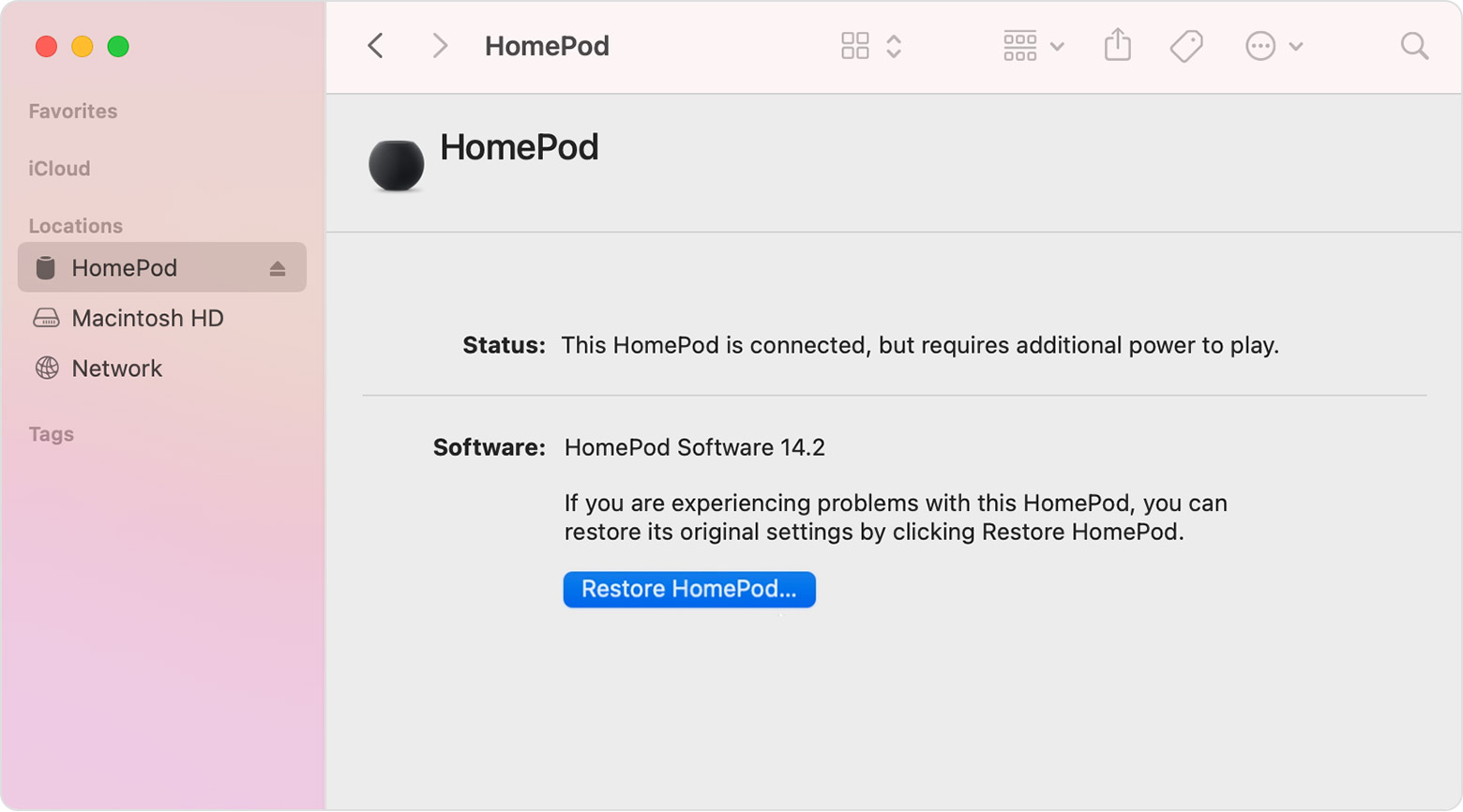
Reserve this for HomePod mini units completely frozen after failed manual resets.
Equipment Verification
Use only the original USB-C cable that shipped with your device—third-party cables often lack data transfer capability. Confirm your computer runs macOS Catalina+ (for Finder access) or has Apple Devices app/iTunes updated on Windows. USB-C ports must support data transfer, not just charging.
Restoration Walkthrough
- Connect HomePod mini directly to computer via USB-C
- Open Finder (Mac) or Apple Devices app (Windows)
- Select HomePod mini when it appears under devices
- Click “Restore HomePod” and confirm action
- Wait 5-15 minutes without disconnecting—progress bar shows completion
- Eject device after computer notification
Key benefit: This process simultaneously installs the latest firmware, fixing bugs that might have caused initial unresponsiveness. Unlike other methods, it bypasses network dependencies entirely.
Decode Status Light Patterns During Reset
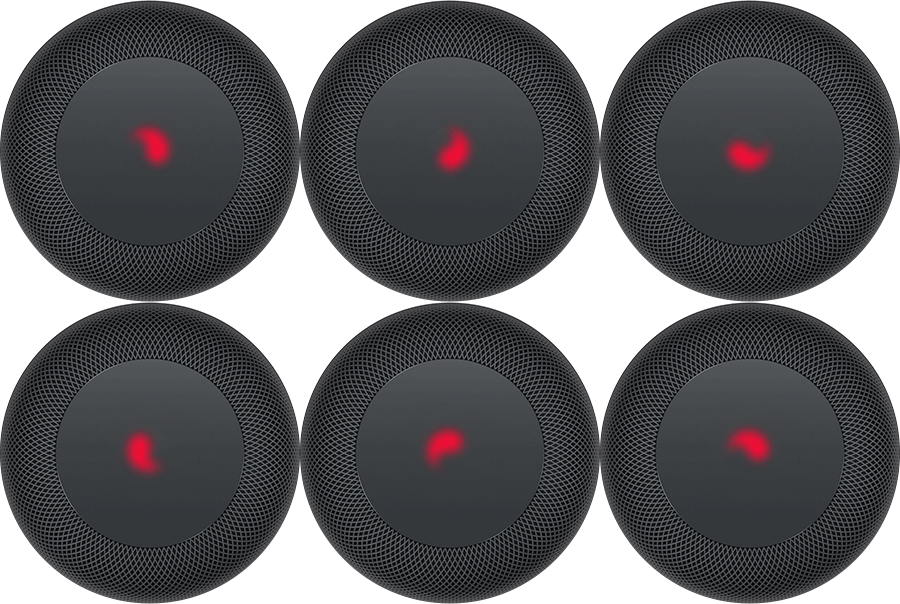
Understanding these visual cues prevents catastrophic mid-process interruptions. White spinning light means reset is actively processing—never unplug during this phase. Solid red light confirms manual reset initiation; maintain pressure until beeps sound. White pulsing light signals reset completion and readiness for re-setup. If lights behave erratically—like rapid flashing or color cycling—your HomePod requires professional service as internal components may be damaged.
Common Reset Failures and Fixes

“Accessory Not Found” Error
Move your iPhone within 3 feet of the HomePod and toggle Wi-Fi off/on to refresh network handshakes. Force-quit and relaunch the Home app—cached data often blocks recognition. If using 2.4GHz Wi-Fi, switch to 5GHz temporarily for stronger signal penetration during reset.
Stuck Spinning Light
Wait at least 5 minutes before intervening; complex data erasure can extend processing time. Check your router’s internet connection—HomePod requires momentary online verification during reset. Restart the iPhone running the Home app to clear communication bottlenecks.
Manual Reset Not Triggering
Recount the 10-second power cycles using a stopwatch app. Try resetting on a non-carpeted surface—static interference disrupts touch sensors. If your HomePod mini sits on wood or tile, place it on your palm during reset for optimal grounding.
Prevent Future Reset Needs
Weekly Maintenance Routine
Wipe the top touch surface with a microfiber cloth to prevent dust buildup interfering with reset gestures. Keep your HomePod at least 12 inches from humidifiers or showers—moisture warps internal microphones over time. Update iOS devices monthly; outdated controllers cause compatibility errors during resets.
Network Optimization Tactics
Position your HomePod within 30 feet of your Wi-Fi router on the same 5GHz band for stable connections. Avoid placement near microwaves or baby monitors operating on 2.4GHz frequencies—they cause disruptive signal interference. Enable “Wake for Network Access” in your router settings to maintain constant HomePod connectivity.
Final Reset Reminders
Before initiating reset: Document custom scenes and automations—these won’t transfer to the new setup. Verify all household users are removed from the Home app to prevent account conflicts. Check iCloud Music Library sync status to avoid losing personalized recommendations.
After successful reset: Immediately test Siri responsiveness with complex commands like “Play jazz from 1965.” Reassign the HomePod to its original room to restore contextual automations. Recreate essential routines before adding new users to prevent setup conflicts.
Resetting your HomePod doesn’t require technical expertise—just precise adherence to these verified steps. Start with the Home app method for responsive devices, escalate to manual reset for stubborn cases, and use computer restoration only for HomePod mini units frozen beyond app control. By following these exact procedures, you’ll achieve a clean factory reset in under 10 minutes, whether preparing for resale or reviving a malfunctioning speaker. Your HomePod will emerge ready for seamless reconfiguration—without risking data leaks or permanent damage.



