
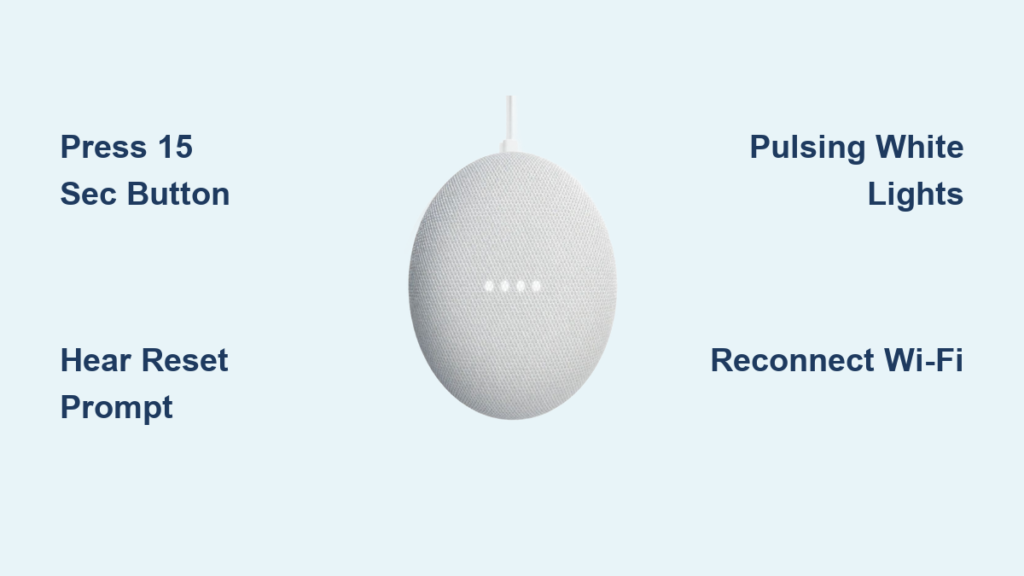
Your Google Home Mini suddenly stops responding to “Hey Google,” or you’re preparing to sell it—but how do you completely wipe your personal data? A proper factory reset erases Wi-Fi passwords, voice profiles, smart home connections, and linked music services, returning your device to its original out-of-box state. Whether you’re battling persistent glitches that won’t clear with reboots or ensuring your privacy before passing the speaker to a new owner, knowing how to factory reset Google Home Mini correctly is non-negotiable. This guide delivers the exact procedures for every Mini generation, troubleshooting fails, and critical prep steps you can’t skip—so you avoid the frustration of partial resets or locked-out devices.
When You Must Factory Reset Google Home Mini
Critical Performance Failures Demand Immediate Reset
If your Mini repeatedly drops Wi-Fi connections, ignores voice commands for hours, or cycles through unresponsive light patterns after power cycling, corrupted software is likely the culprit. When router restarts and app troubleshooting fail, a full factory reset becomes your fastest path to recovery—bypassing days of guesswork with a 2-minute solution.
Ownership Transfers Require Mandatory Data Wiping
Selling, gifting, or recycling your Mini without a reset leaves your Google account, smart home routines, and voice history vulnerable. New owners could access your thermostat settings, lighting schedules, or even payment-linked services like YouTube Premium. A complete wipe is the only ethical and secure way to hand off your device.
Account Switching Necessitates a Clean Slate
Moving your Mini to a new household or different Google account? Voice Match profiles, personalized news feeds, and custom routines won’t transfer. Attempting to reuse the device without resetting causes setup conflicts and leaves old account data lingering in the system.
Warning: This process permanently deletes all data. Before proceeding, screenshot custom routines in your Google Home app and note your Wi-Fi password—you’ll need both during reconfiguration.
Pre-Reset Checklist for Google Home Mini
Essential Data Preservation Steps
- Document network credentials: Write down your 2.4GHz/5GHz Wi-Fi name and password (the Mini requires this post-reset)
- Capture routine configurations: Take screenshots of all custom automations in the Google Home app
- List linked services: Note Spotify, YouTube Music, or smart home devices needing reconnection
- Verify account access: Ensure you can log into the primary Google account tied to the device
Physical Setup Requirements
Place your Mini on a stable surface near its power source—never attempt a reset while unplugged. Keep your smartphone with the Google Home app (version 2.10+) within arm’s reach, and eliminate background noise so you hear audio prompts clearly. Confirm strong Wi-Fi signal strength in the room; weak connectivity causes reset failures during the erasure phase.
Reset Google Home Mini 1st Generation Step-by-Step
:max_bytes(150000):strip_icc()/GoogleHomemini_resetbutton-5b7df5f3c9e77c0024a87feb.jpg)
Physical Button Reset Procedure
- Confirm power status: White LED lights must glow steadily around the base
- Locate reset button: Flip the device to find the small circular button near the power cord on the underside
- Initiate reset sequence: Press and hold firmly for 15 seconds straight—do not release early
- Listen for critical prompt: At 5 seconds, Assistant says, “You’re about to completely reset this device.” Keep holding
- Final confirmation: At 15 seconds, you’ll hear “Release to start factory reset”—let go immediately
- Monitor light patterns: Pulsing white circles indicate active erasure (60–120 seconds)
- Completion signal: Solid white setup lights confirm reset success
Pro tip: Use a paperclip if your finger slips—the button requires consistent pressure. If lights freeze mid-pulse, unplug for 60 seconds and retry.
Reset Google Home Mini 2nd Gen & Nest Mini Correctly
Top-Surface Reset Method
- Check power indicator: White LEDs must be visible (no pulsing indicates power issues)
- Enable microphone: Slide the physical mute switch on the back to ON (toward the cord)
- Press reset zone: Hold the center top area between volume buttons firmly for 12–15 seconds
- Hear reset warning: Assistant announces “Resetting will erase all settings”—continue holding
- Release on prompt: Lift your finger when instructed to begin erasure
- Track progress: Pulsing white lights sweep clockwise during data wiping
- Reset complete: Device reboots to setup mode with steady white glow
Critical mistake to avoid: Holding the mute switch instead of the top surface—this only toggles microphone status without triggering reset.
Use Google Home App to Reset Remotely

Mobile App Reset When Buttons Fail
- Open the app: Launch Google Home on Android/iOS with your account logged in
- Select device: Tap your Mini’s tile on the home screen
- Access settings: Tap the gear icon in the top-right corner
- Navigate to reset: Choose Device information > Factory reset
- Confirm irreversible action: Read warning about data loss
- Execute remote wipe: Tap Factory reset twice to confirm
- Monitor progress: Mini announces “Resetting your device” and cycles through lights
Why this method wins: Perfect for sticky physical buttons or when you can’t hear audio prompts. Requires active Wi-Fi—won’t work if the Mini is completely offline.
After Reset: Reconnect and Restore Your Mini Fully
Essential Reconfiguration Steps
- Power cycle: Unplug for 10 seconds, then reconnect power
- Launch setup: In Google Home app, tap + > Set up device > New device
- Join Wi-Fi: Select network and enter password (2.4GHz required for initial setup)
- Account sign-in: Use the Google account you want permanently linked
- Voice Match training: Complete 5–7 voice samples for personalized recognition
Re-Linking Critical Services
- Music streaming: Reconnect Spotify Premium or YouTube Music under Account > Music
- Smart home devices: Rediscover Philips Hue lights or Nest thermostats via Add > Works with Google
- Custom routines: Rebuild morning alarms or bedtime automations from your screenshots
- Preferences: Reset default volume and news sources in Device settings
Time estimate: Allow 20 minutes for full restoration—twice as long if re-linking 10+ smart devices.
Fix Failed Google Home Mini Reset Attempts Immediately
Unresponsive Button Troubleshooting
- Apply firm pressure: Hold 20+ seconds for stubborn hardware (common in older Mini 1st Gen units)
- Check mute switch position: On 2nd Gen, ensure it’s slid fully ON before pressing the top surface
- Eliminate noise interference: Perform reset in a quiet room to hear audio prompts clearly
No Audio Confirmation Fixes
- Increase volume: Tap the Mini’s left side to unmute before resetting
- Power cycle first: Unplug for 30 seconds if lights appear abnormal
- Use app method: Bypass physical buttons entirely via Google Home app reset
Urgent solution for loop errors: Unplug for 90 seconds, then attempt the app reset—this clears residual power causing stuck states.
Google Home Mini Reset Light Guide & Timing

| Phase | Duration | Light Behavior | What It Means |
|---|---|---|---|
| Button Press | 0-15 sec | Solid white | Reset sequence initiated |
| Data Erasure | 60-120 sec | Pulsing white circles | Personal data being wiped |
| Completion | Instant | Steady white glow | Ready for new setup |
Visual cue tip: If lights turn orange during reset, your Wi-Fi signal is too weak—move closer to the router and restart the process.
Google Home Mini Reset Quick Reference
- 1st Gen reset button: Underside, adjacent to power cord port
- 2nd Gen reset zone: Center top surface between volume buttons
- App version minimum: Google Home 2.10+ (update via Play Store/App Store)
- Wi-Fi requirement: Must reconnect to 2.4GHz network for initial setup
- Voice Match necessity: Mandatory re-training for personalized responses
Why Proper Factory Reset Prevents Future Headaches
A correctly executed how to factory reset Google Home Mini process takes under three minutes but saves hours of troubleshooting when software glitches cripple your smart home. Always store Wi-Fi credentials and routine screenshots in a secure note—this cuts reconfiguration time by 70% during your next reset. Remember: selling or donating without wiping leaves your smart home vulnerable to unauthorized access. If you encounter persistent reset failures after three attempts, contact Google Support before disassembling the device—physical repairs void warranties. Keep this guide bookmarked; with Mini units averaging 3+ years of service, you’ll likely need it again when new routines conflict with old settings. Your privacy and device performance depend on mastering this fundamental reset skill.



