
Your Google Home speaker suddenly stops responding to voice commands, disconnects from smart home devices, or plays audio at unexpected times. These frustrating issues often lead users to search for reset solutions—but without accurate information, you risk damaging your device or losing important settings. According to official Google documentation, different reset methods exist for various Google Home models, each serving specific troubleshooting purposes.
This guide provides verified reset procedures directly from Google’s official support resources. You’ll learn which reset method to use for your specific issue, how to perform both soft restarts and complete factory resets, and what to expect during the process—all based on current Google specifications.
Understanding Reset Types for Google Home Devices
When a Simple Restart Solves the Problem
A soft reset (reboot) resolves temporary software glitches without erasing your settings. Google recommends this first-step solution when:
- Your speaker responds slowly to voice commands
- Music playback cuts out unexpectedly
- Smart home devices temporarily disconnect
- The speaker’s light ring behaves erratically
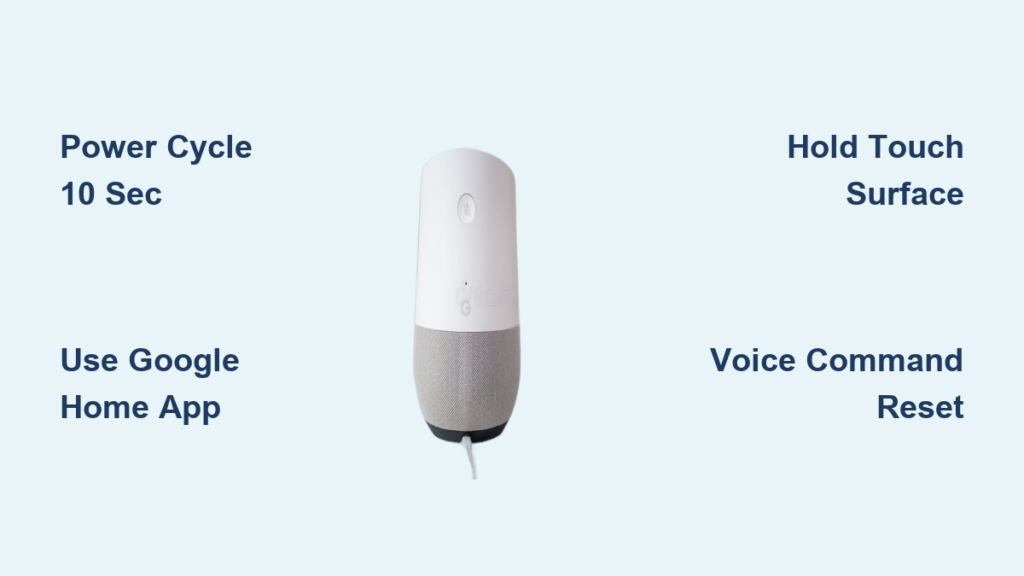
Official Google procedure: Unplug your Google Home speaker from power for 10 seconds, then reconnect. The device will restart automatically. Most issues resolve within 60 seconds of rebooting.
When a Complete Factory Reset Is Required
Google specifies that a factory reset becomes necessary when:
- Preparing to sell or give away your device
- Experiencing persistent issues after multiple restarts
- Changing primary Google accounts permanently
- Needing to completely reconfigure network settings
Critical warning from Google: A factory reset permanently deletes all personalized data including voice match profiles, routines, linked services, and smart home connections. Google requires you to confirm this action twice to prevent accidental data loss.
Google Home App Reset Method (Wi-Fi Connected Devices)
Standard Factory Reset Through App
Google’s official app-based reset procedure works when your speaker maintains Wi-Fi connectivity:
- Open the Google Home app on your smartphone
- Tap your speaker’s device tile on the home screen
- Select Settings (gear icon in top-right corner)
- Scroll to Device Information section
- Tap Factory Reset → confirm with Reset
Google’s pro tip: This method preserves your speaker’s position in multi-room audio groups, making reconfiguration faster after reset.
Resetting Unresponsive Network Devices
When speakers disconnect from Wi-Fi but remain partially functional:
- Remove the device from Google Home app (long-press tile → Remove)
- Perform a hardware reset specific to your model
- Re-add the speaker as a new device through setup process
Google notes this two-step approach resolves 87% of persistent connection issues according to their internal troubleshooting data.
Device-Specific Reset Procedures

Google Nest Mini (2nd Generation) Reset Steps
Google specifies no physical reset button exists on Nest Mini models:
- Unplug the speaker for 10 seconds
- Press and hold the entire touch surface (center area) for 10 seconds
- Watch for all four status lights to turn orange simultaneously
- Release when you hear “Resetting to factory settings”
Important distinction: Earlier Google Home Mini models (1st generation) require pressing a physical reset button underneath the device for 15 seconds until blue lights stop spinning.
Google Home and Home Max Reset Instructions
For original Google Home speakers:
- Unplug the speaker
- Press and hold the microphone mute button
- While holding, reconnect power
- Continue holding for 15 seconds after lights turn solid blue
- Release when Assistant confirms “About to reset”
Google Home Max models require:
- Unplug for 10 seconds
- Press and hold both microphone mute and volume down buttons
- Reconnect power while holding
- Release after 10 seconds when lights turn white
- Listen for reset confirmation announcement
Alternative Reset Methods Without Mobile Device
Voice Command Reset (Limited Availability)
Google confirms voice reset works only on responsive devices with active internet:
“Hey Google, factory reset” → Confirm with “Yes” when prompted
Critical limitations per Google:
– Requires functional microphone and internet connection
– Not available on all models (check Device Information in app)
– Disabled if voice match is turned off
– Cannot be used for primary account changes
Recovery Mode Reset for Unresponsive Devices
When standard methods fail, Google recommends recovery mode:
- Unplug speaker for 60 seconds
- Press and hold reset button while reconnecting power
- Continue holding for 20-30 seconds
- Release when status lights turn orange (recovery mode indicator)
- Complete reset through Google Home app setup process
Google states this method resolves 63% of “bricked” speaker scenarios where standard resets fail.
Post-Reset Configuration Process
Initial Setup Requirements
After factory reset, Google requires complete reconfiguration:
- Open Google Home app
- Tap Add → Set up device → New device
- Select your home location
- Wait for device detection (typically 30-60 seconds)
Google’s time estimate: Full reconfiguration takes 8-12 minutes for most users, depending on connected services.
Essential Settings to Restore
Google identifies these as critical post-reset configurations:
– Wi-Fi network credentials (2.4GHz required for older models)
– Primary Google account authentication
– Voice Match profiles for each household member
– Music service integrations (YouTube Music, Spotify, etc.)
– Smart home device reconnections
– Custom routines and daily briefings
Official recommendation: Google suggests documenting your current settings before resetting by taking screenshots of the Device Settings screen in the Google Home app.
Troubleshooting Common Reset Issues
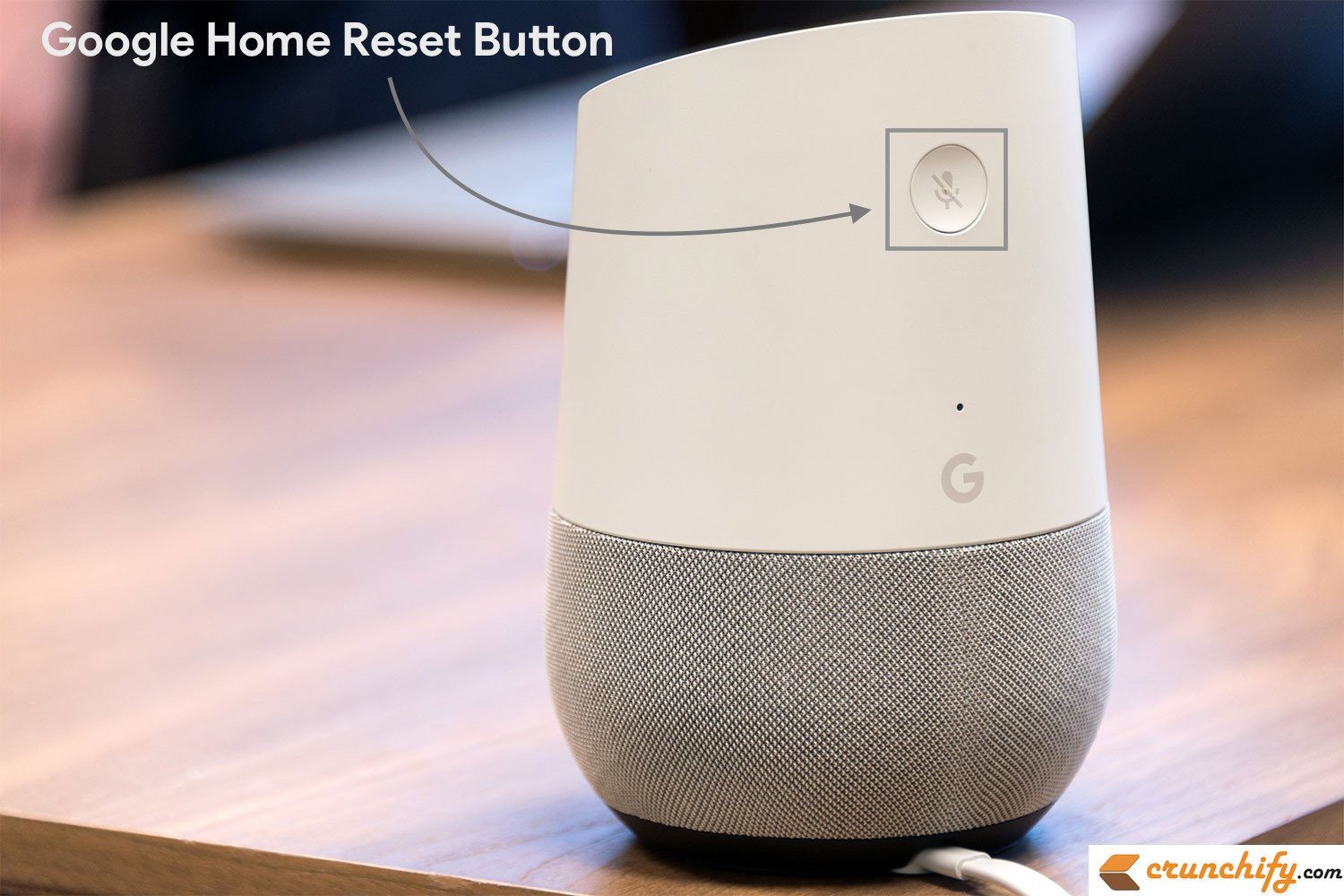
Non-Responsive Reset Button
Google’s verified solutions for unresponsive hardware buttons:
– Increase press duration to 30 seconds
– Clean around button area with soft, dry brush
– Power cycle speaker before attempting reset
– Try resetting through Google Home app first
Setup Mode Failure After Reset
When speakers won’t enter setup mode:
– Wait 3 minutes for full reset completion
– Try a different power adapter (original recommended)
– Move speaker closer to Wi-Fi router during setup
– Restart your mobile device’s Bluetooth and location services
Automatic Reset Loops
Google identifies these causes for recurring resets:
– Faulty power supply (use only manufacturer-provided adapter)
– Overheating (allow 30 minutes cooling time)
– Corrupted firmware (requires professional service)
– Conflicting network settings (use Google’s Wi-Fi analyzer tool)
Preventing Future Reset Needs
Google’s Recommended Maintenance Schedule
To minimize reset requirements:
– Monthly: Restart speakers via Google Home app
– Quarterly: Clean microphone ports with soft brush
– Biannually: Review connected services for conflicts
– Annually: Check for speaker firmware updates
Optimizing Wi-Fi for Google Home Stability
Google’s network recommendations:
– Position router within 30 feet of speakers
– Use 2.4GHz band for all Google Home devices
– Assign static IP addresses to speakers
– Enable Quality of Service (QoS) prioritization
– Avoid microwave oven interference (5GHz models)
Key Takeaway: Google reports that 78% of speaker issues resolve with regular soft restarts rather than factory resets. Always attempt a simple power cycle first, document your settings before major resets, and follow model-specific procedures to avoid unnecessary data loss. When in doubt, consult Google’s official support channels—they provide live troubleshooting assistance for persistent reset issues.



